What Is Azure VM Backup?
Azure VM Backup is a built-in service that backs up your virtual machines on Azure. It saves backups of your VM disks as snapshots in a Recovery Services Vault. You don’t need to install agents or mess with network settings. When you restore, it can create a new VM in Azure from any saved point.
This service has two storage options: a quick snapshot tier for recent backups and a cheaper vault tier for keeping backups longer. This setup gives you both fast restore times and affordable long-term backup.
Creating the Recovery Services Vault
The first step is to create a Recovery Services Vault. This is the container that stores all backup data and manages your backup policies. The vault must be in the same Azure region as the VM you want to protect.
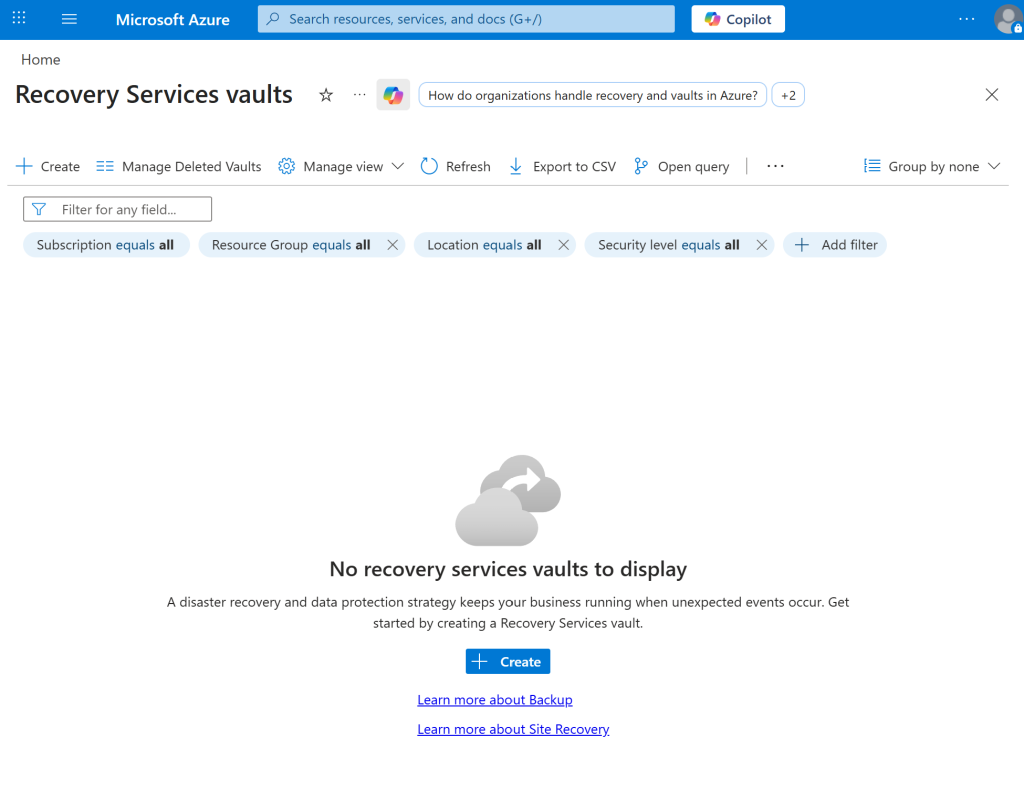
Navigate to Recovery Services vaults in the Azure Portal. If no vault exists yet, the page will appear empty.
The Recovery Services vaults overview showing no existing vaults. Click + Create to begin.
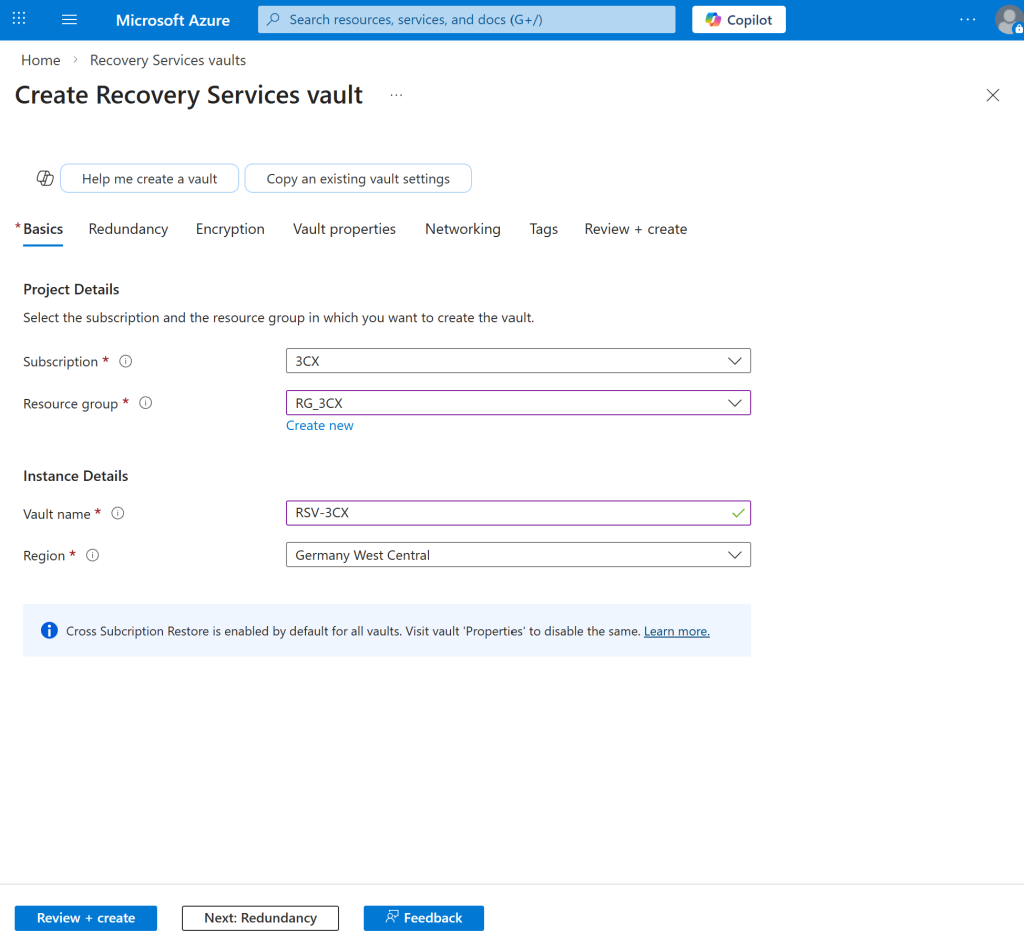
On the creation form, select the subscription and resource group where your VM resides. Give the vault a descriptive name and ensure the region matches your VM’s location.
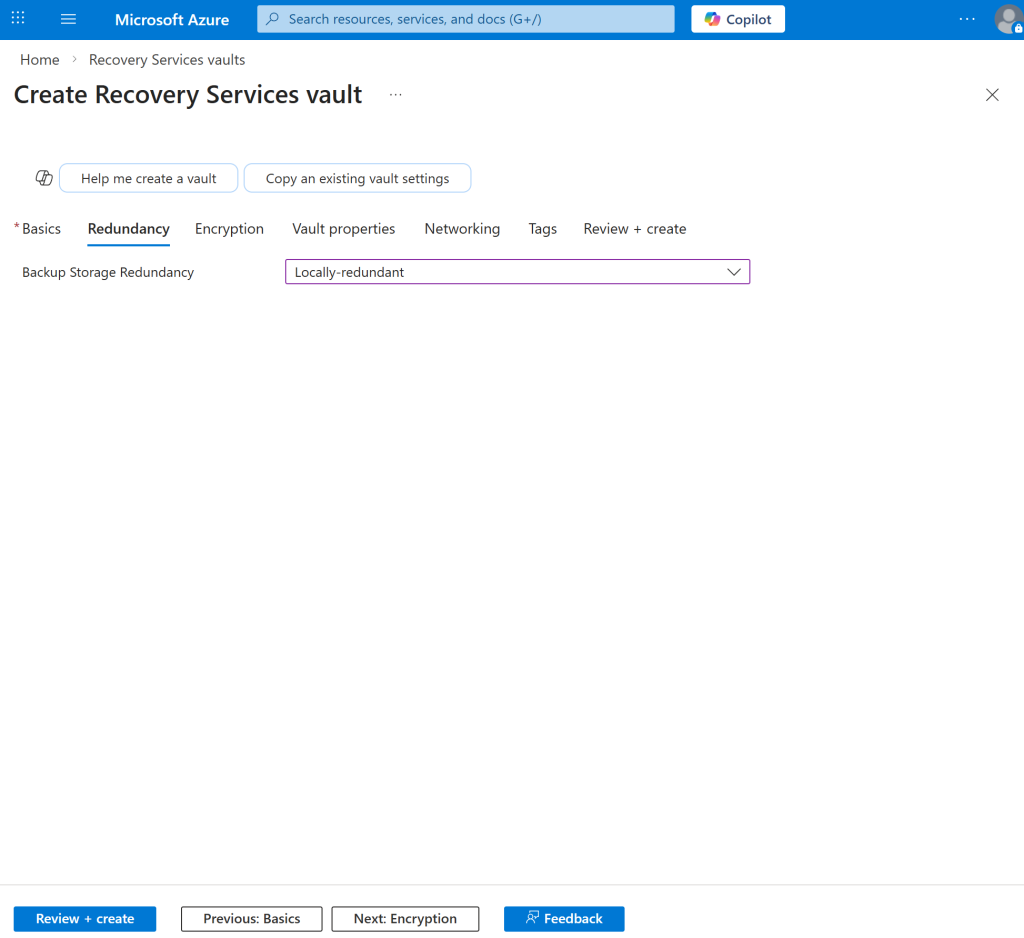
On the Redundancy tab, choose the storage replication type. Locally-redundant (LRS) keeps three copies of your data within a single datacenter and is the most cost-effective option. Geo-redundant (GRS) replicates to a paired region for cross-region disaster recovery at a higher cost.
Leave the remaining tabs (Encryption, Vault properties, Networking, Tags) at their defaults and click Review + create.
Configuring the Backup
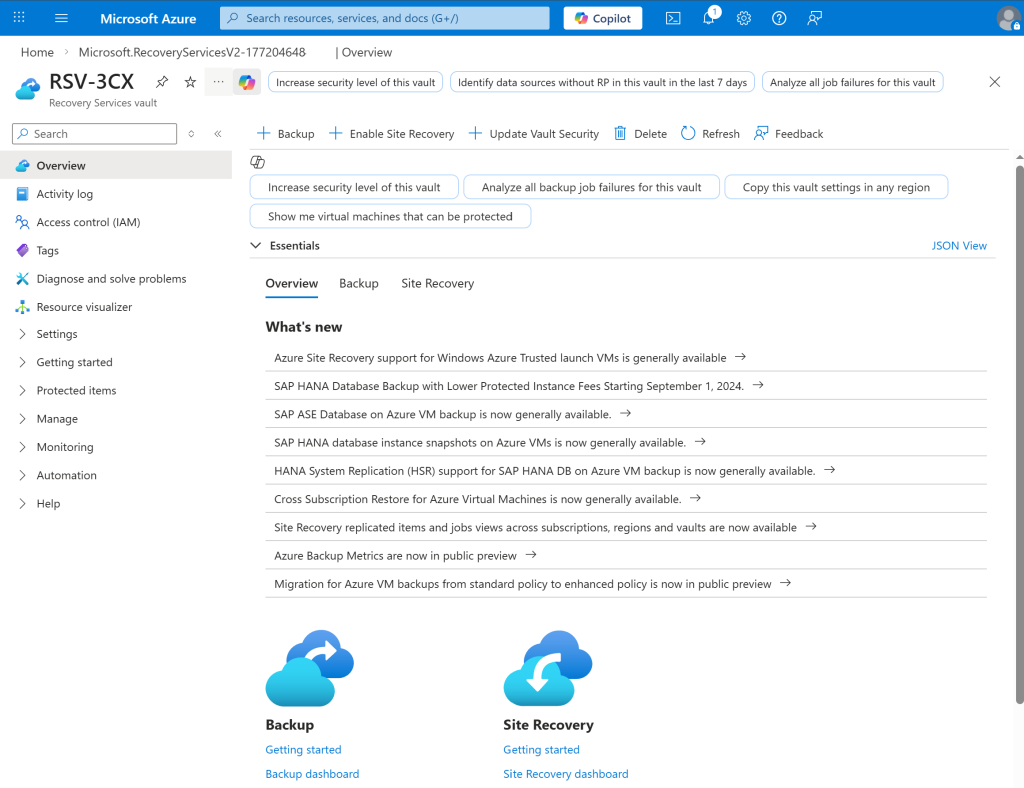
With the vault created, the next step is to configure the backup for your virtual machine. Open the vault and click + Backup in the top menu bar.
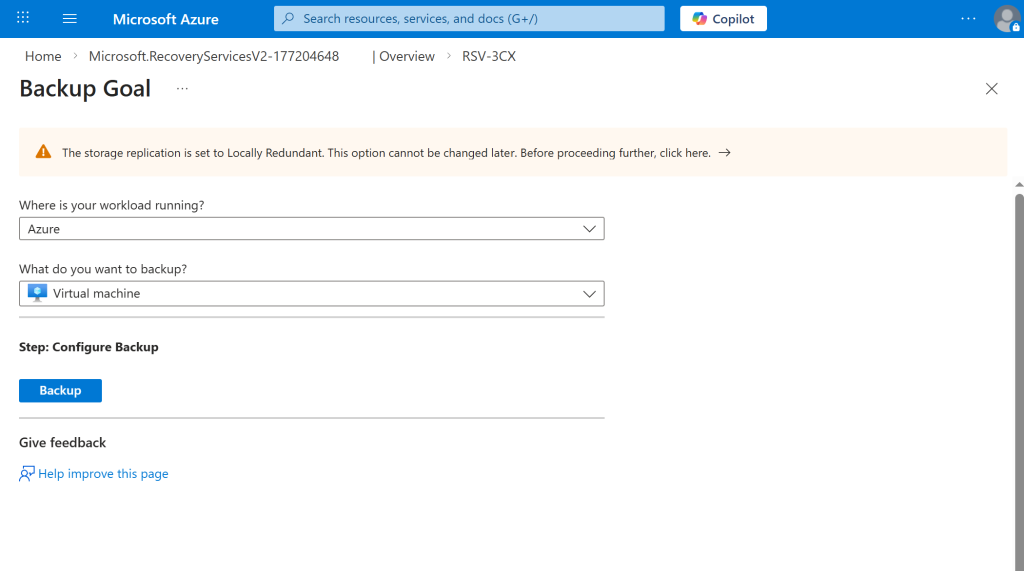
In the Backup Goal screen, select Azure as the workload location and Virtual machine as the resource type to back up. Then click Backup to continue.
Choosing the Right Policy
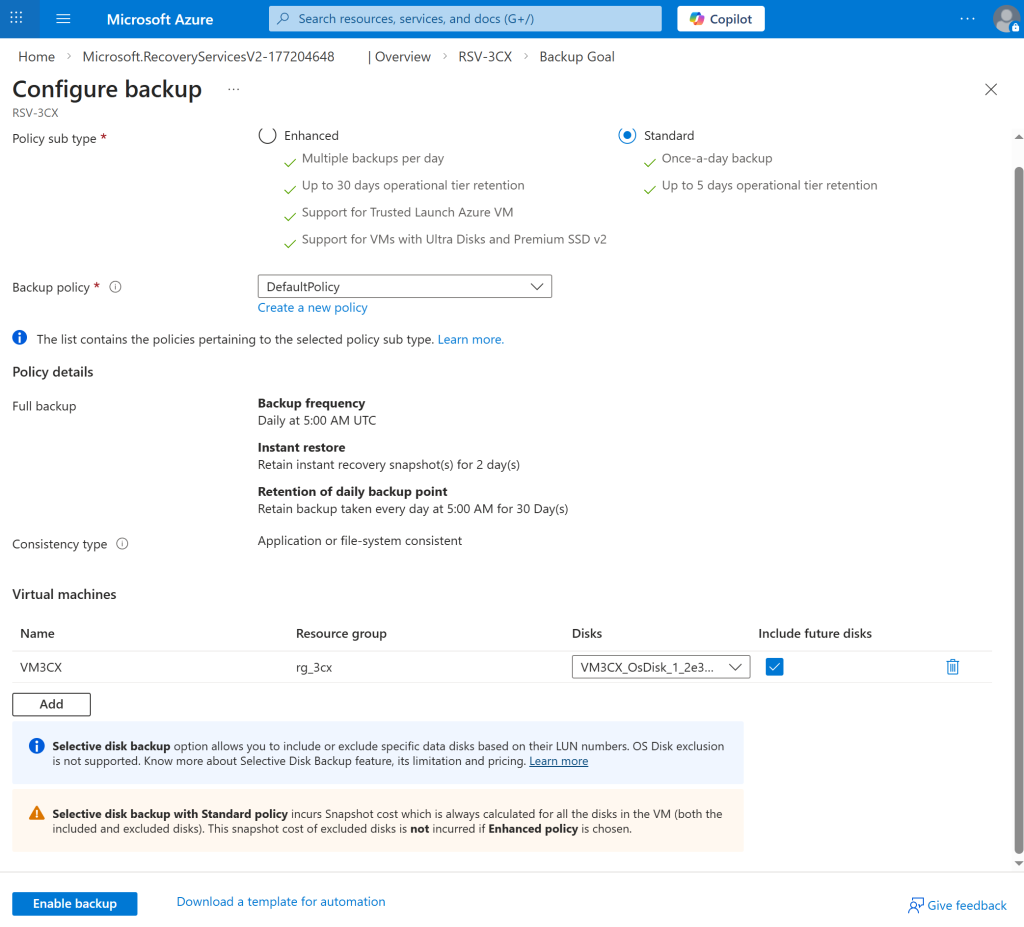
Azure offers two policy sub types: Enhanced and Standard. The choice affects backup frequency, snapshot retention, and cost.
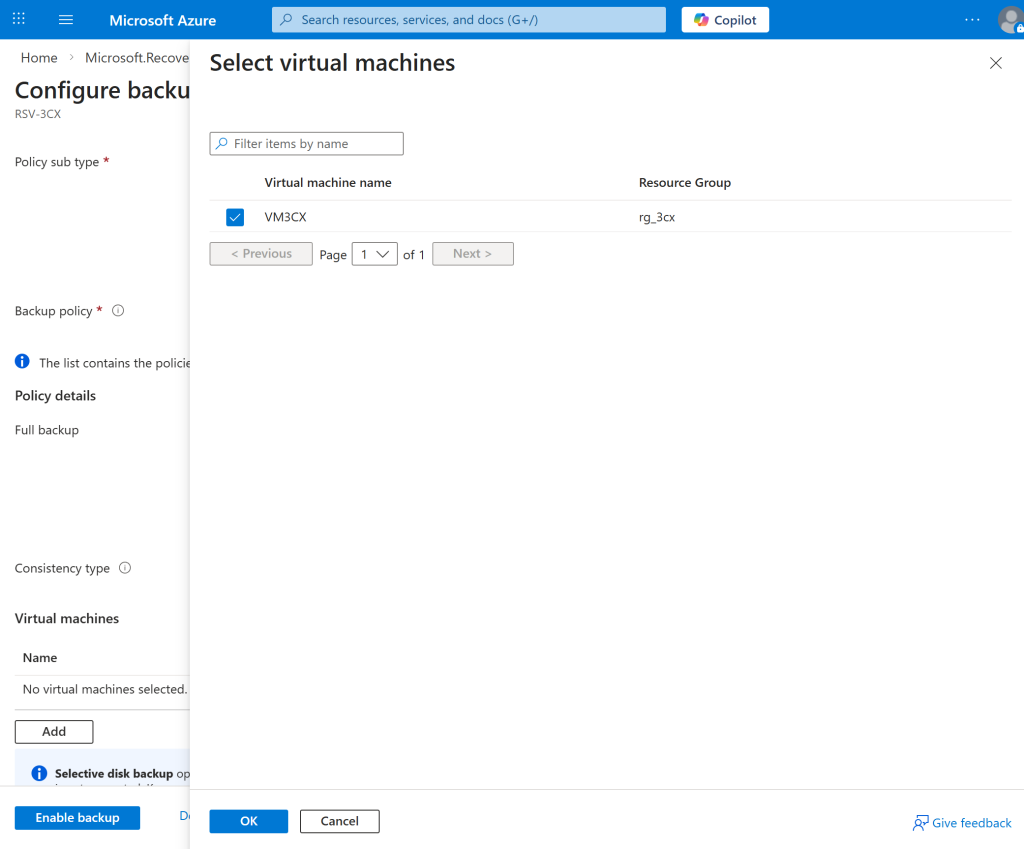
The configuration page now shows the selected VM, its OS disk, and the policy details. Verify that “Include future disks” is checked so any disks added later are automatically included in backups.
Azure VM Backup uses two storage tiers for recovery points. Understanding the difference is important for restore planning and cost management.
Snapshot tier (Instant Restore): The backup snapshot is kept at the managed disk level in your region. Restores from this tier complete in minutes because no data needs to be transferred from the vault. These snapshots cost more to store since they persist as disk-level resources.
Vault-standard tier: After the snapshot is taken, the data is transferred to the Recovery Services Vault. Restores from this tier take longer depending on data size, as the data must be read from vault storage. This tier is significantly cheaper for long-term retention.
Running the First Backup
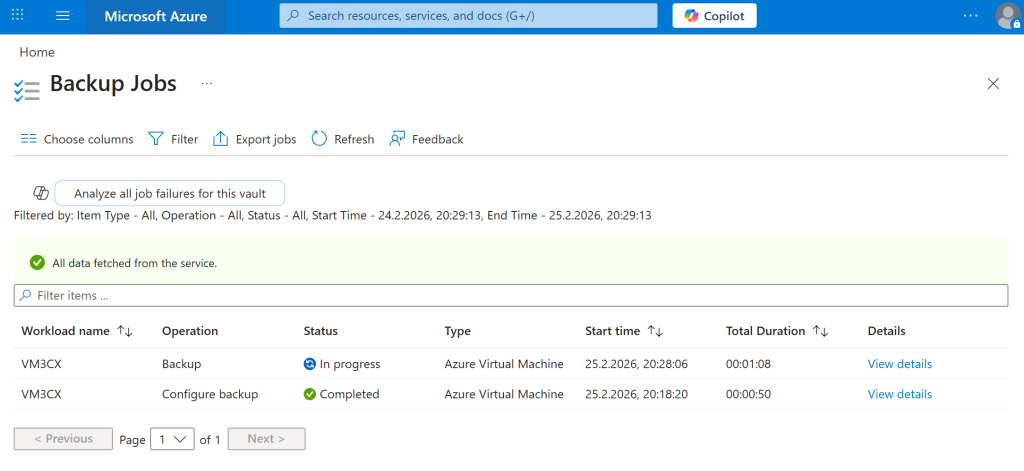
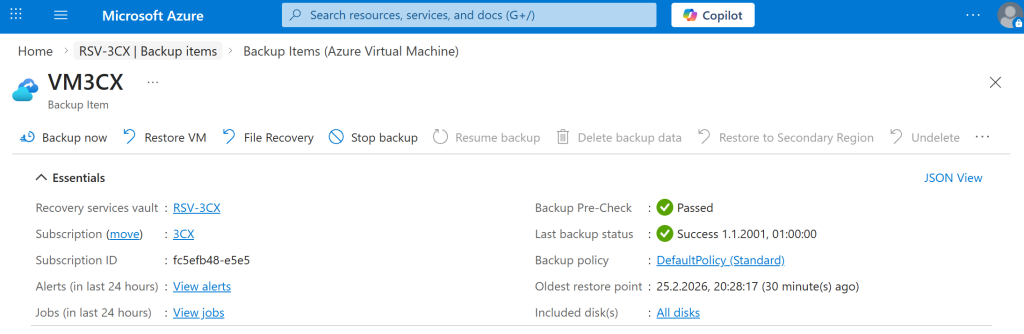
After enabling backup, the status will show “Warning (Initial backup pending)”. The first scheduled backup will run automatically at the configured time (5:00 AM UTC in this example). If you want to verify the setup immediately, you can trigger a manual backup.
When clicking Backup now, Azure asks for a retention date for this on-demand recovery point. The default is 30 days from today, which aligns with the policy retention. Leave the default and confirm.
Test Restore
Once the first backup completes, it is strongly recommended to validate the restore process. A test restore confirms that your backup is usable and that you are familiar with the recovery procedure before you need it in an emergency.
Navigate to the vault, open Protected items → Backup items → Azure Virtual Machine, select your VM, and click Restore VM. Choose a recovery point, then select Create new → Create new virtual machine. Give the restored VM a different name and, if possible, place it on a different virtual network to avoid conflicts with the production VM.
After the restore completes, verify the VM boots correctly and services are running as expected. Then delete the test VM and all its associated resources (disk, NIC, public IP) to avoid ongoing costs.
Summary
Azure VM Backup with a Recovery Services Vault provides a fully managed, agentless backup solution for your Azure VMs. With a Standard policy running daily backups and 30 days of retention, you get reliable protection with minimal configuration.