If you’re still using Get-WmiObject to query remote servers, it’s time to move on. Microsoft removed the WMI cmdlets from PowerShell 6+ entirely. The replacement – PowerShell CimSession – has been around since PowerShell 3, and if remoting already works in your environment, CimSession will too.
How CimSession Works
A CimSession is a persistent connection to a remote machine’s WMI repository. It uses WS-Man by default – same protocol as PowerShell remoting, same port (5985). You create the session once and reuse it for as many queries as you need.
# Create a session to a remote server
$session = New-CimSession -ComputerName SRV01

# See what's connected
Get-CimSession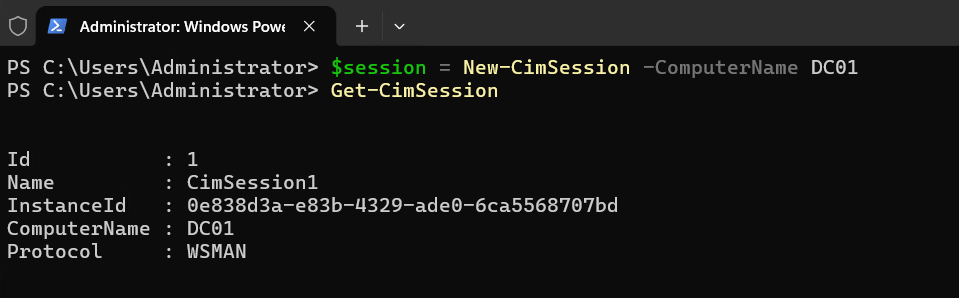
Notice the Protocol column — WSMAN by default. No extra firewall rules needed if remoting is already enabled.
You can open sessions to multiple servers in one call:
$cred = Get-Credential
$sessions = New-CimSession -ComputerName "DC01", "DEV-04", "DEV-05" -Credential $cred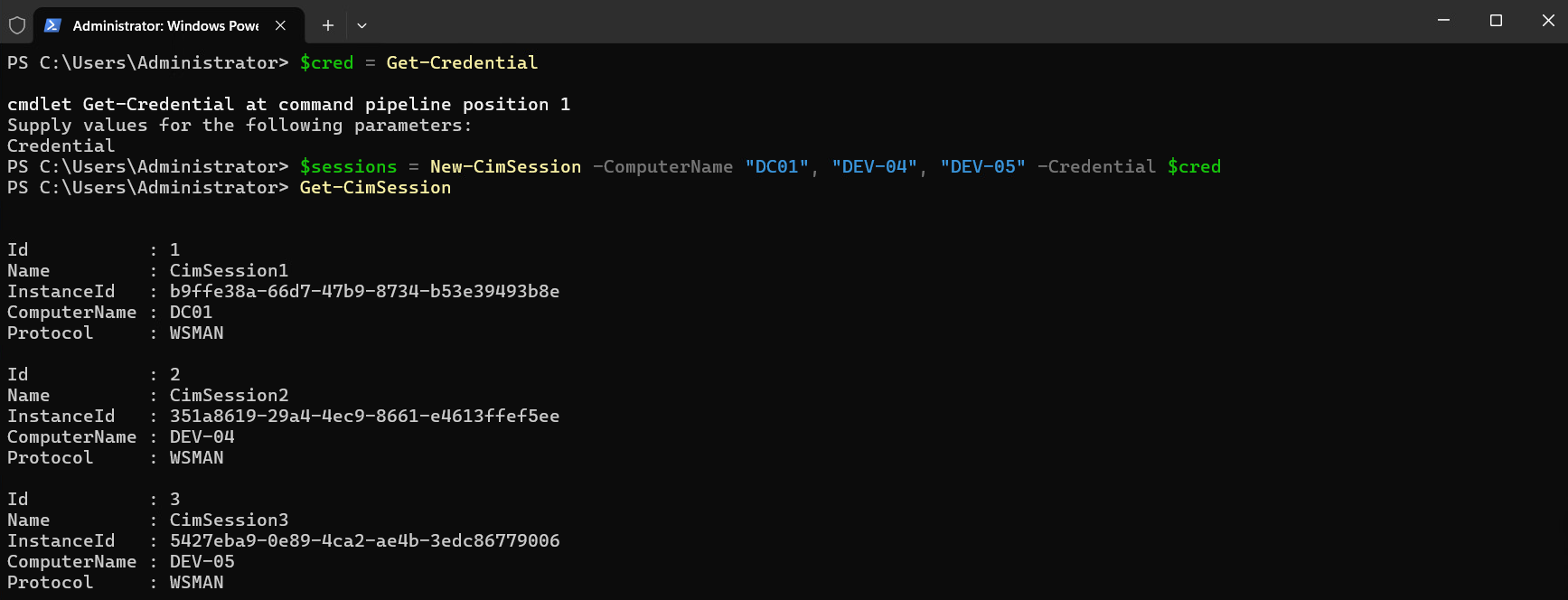
One line. Three sessions. The $cred variable keeps you from getting prompted three times.
Querying Remote Systems
Once you have a session, pass it to Get-CimInstance with the
-CimSession parameter.
This is where CimSession starts making sense – one authenticated session, reused for every query.
# Pull OS info from a remote server
Get-CimInstance -CimSession $sessions -ClassName Win32_OperatingSystem |
    Select-Object CSName, Caption, BuildNumber, LastBootUpTime
Same syntax works for any WMI class. Services, disks, processes – just swap the class name:
# Running services
$services = foreach ($session in $sessions) {
    Get-CimInstance -CimSession $session -ClassName Win32_Service -Filter "State = 'Running'" |
        Select-Object Name, StartMode, ProcessId |
        ForEach-Object {
            $_ | Add-Member -MemberType NoteProperty -Name ComputerName -Value $session.ComputerName -PassThru
        }
}

$services | Format-Table Name, ComputerName, StartMode, ProcessId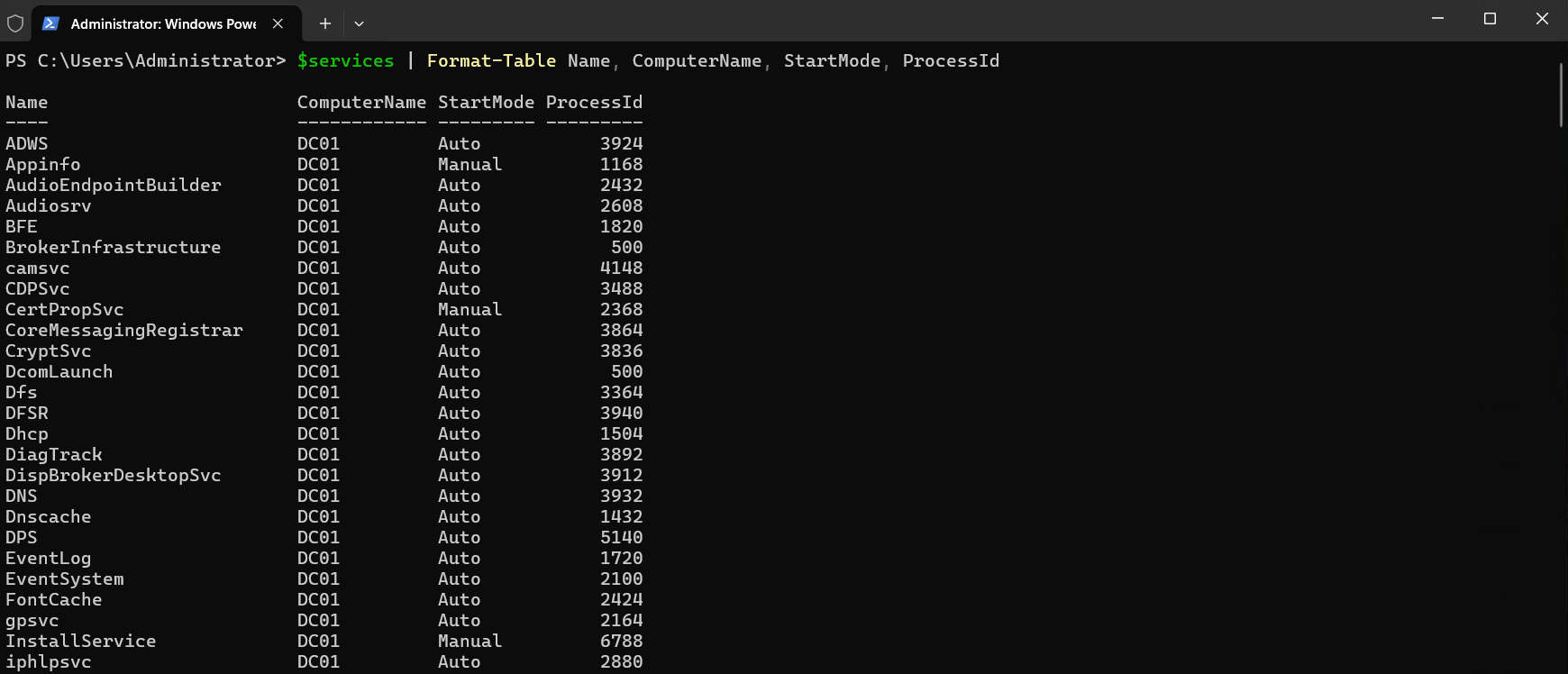
$diskSpace = foreach ($session in $sessions) {
    Get-CimInstance -CimSession $session -ClassName Win32_LogicalDisk -Filter "DriveType = 3" |
        Select-Object DeviceID,
                      @{N='SizeGB';E={[math]::Round($_.Size/1GB,1)}},
                      @{N='FreeGB';E={[math]::Round($_.FreeSpace/1GB,1)}} |
        ForEach-Object {
            $_ | Add-Member -MemberType NoteProperty -Name ComputerName -Value $session.ComputerName -PassThru
        }
}

$diskSpace | Format-Table DeviceID, ComputerName, SizeGB, FreeGB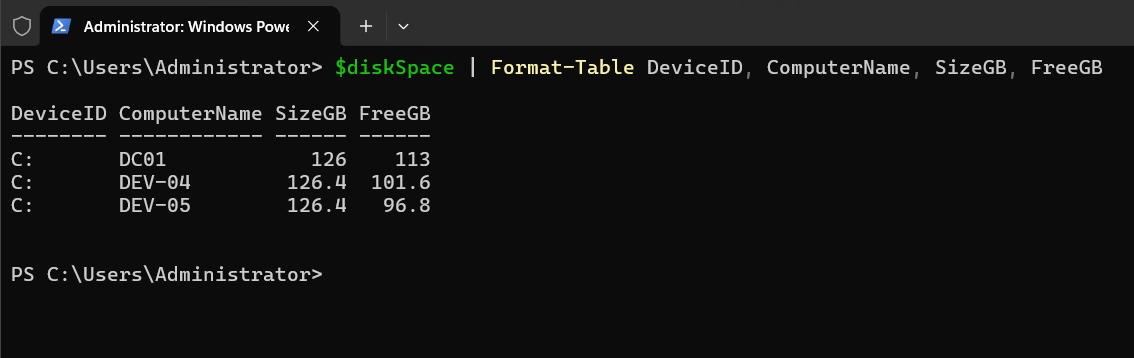
And when you pass multiple sessions, the query fans out to all of them automatically:
# Uptime across your entire fleet — one command
Get-CimInstance -CimSession $sessions -ClassName Win32_OperatingSystem |
    Select-Object CSName,
        @{N='UptimeDays';E={[math]::Round(((Get-Date) - $_.LastBootUpTime).TotalDays, 1)}} |
    Sort-Object CSName
Running Methods Remotely
Invoke-CimMethod lets you call WMI methods through the session. The method names are WMI names, not PowerShell cmdlet names — so it’s StopService not Stop-Service.
# Stop and start a service via CIM
$svc = Get-CimInstance -CimSession $sessions -ClassName Win32_Service -Filter "Name = 'Spooler'"
Invoke-CimMethod -InputObject $svc -MethodName StopService
Invoke-CimMethod -InputObject $svc -MethodName StartService
# ReturnValue 0 = success
This works without needing a full PSSession. You’re calling methods on the WMI object directly — lighter weight than a remote shell.
DCOM Fallback for Legacy Systems
Older systems – Server 2008 R2, machines where WinRM was never configured – won’t speak WS-Man. CimSession supports DCOM as a fallback, but you have to request it explicitly with New-CimSessionOption:
# Force DCOM for a legacy box
$dcomOption = New-CimSessionOption -Protocol DCOM
$legacySession = New-CimSession -ComputerName OLD-SRV01 -SessionOption $dcomOption

# From here, same syntax — your queries don't care about the protocol
Get-CimInstance -CimSession $legacySession -ClassName Win32_OperatingSystem
CimSession vs PSSession
This trips people up. CimSession and PSSession are completely different objects. You can’t Enter-PSSession into a CimSession.
CimSession is for structured WMI queries and method calls — pulling data from many machines fast. PSSession gives you a full remote shell for running arbitrary commands. And CIM sessions don’t require PowerShell on the remote end – just WS-Man.
Use CimSession for data collection and fleet management. Use PSSession when you need to execute scripts interactively on a specific box.
Session Cleanup
Sessions persist until removed or until your process exits. Always clean up – especially in scripts that loop through many servers.
# Remove specific sessions
Remove-CimSession -CimSession $session

# Or nuke all of them
Get-CimSession | Remove-CimSession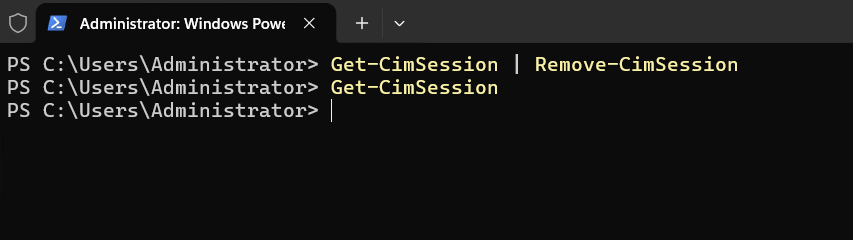
Now that the fundamentals are covered, let’s put them together into something you’d actually run in production.
Multi-Server Inventory Script
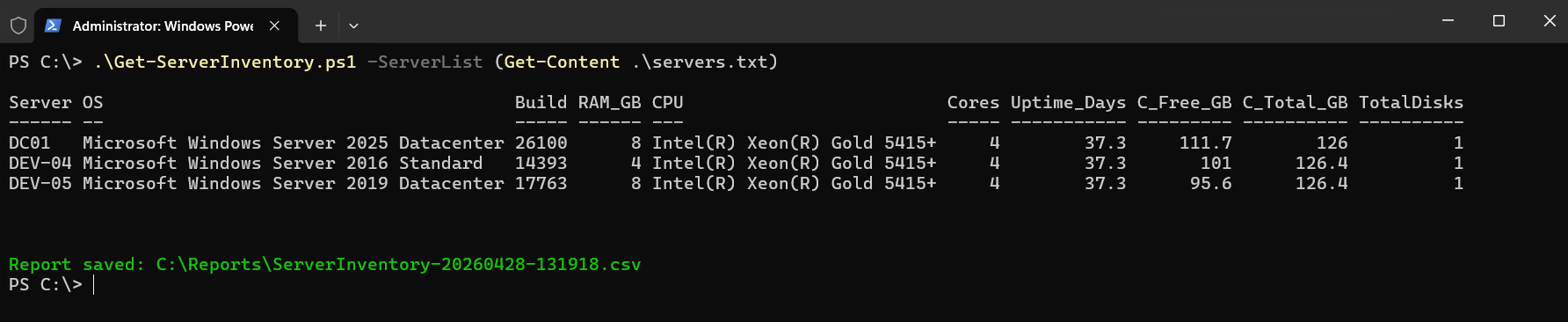
This one gets run at the start of every engagement. It opens sessions to a server list, pulls hardware and OS details from each, and dumps a CSV you can hand to anyone.
# Multi-server inventory — pulls OS, hardware, disk, and uptime into a CSV
# Usage: .\Get-ServerInventory.ps1 -ServerList "SRV01","SRV02","SRV03"
param(
    [Parameter(Mandatory)]
    [string[]]$ServerList,

    [string]$OutputPath = "C:\Reports",
    [PSCredential]$Credential
)

$timestamp = Get-Date -Format "yyyyMMdd-HHmmss"
$reportFile = Join-Path $OutputPath "ServerInventory-$timestamp.csv"
if (!(Test-Path $OutputPath)) { New-Item -Path $OutputPath -ItemType Directory -Force | Out-Null }

$sessParams = @{ ComputerName = $ServerList; ErrorAction = 'SilentlyContinue' }
if ($Credential) { $sessParams.Credential = $Credential }

$sessions = New-CimSession @sessParams
$failed = $ServerList | Where-Object { $_ -notin $sessions.ComputerName }
if ($failed) { Write-Warning "Could not connect to: $($failed -join ', ')" }

$inventory = foreach ($s in $sessions) {
    $os   = Get-CimInstance -CimSession $s -ClassName Win32_OperatingSystem
    $cs   = Get-CimInstance -CimSession $s -ClassName Win32_ComputerSystem
    $cpu  = Get-CimInstance -CimSession $s -ClassName Win32_Processor | Select-Object -First 1
    $disk = Get-CimInstance -CimSession $s -ClassName Win32_LogicalDisk -Filter "DriveType = 3"

    [PSCustomObject]@{
        Server       = $s.ComputerName
        OS           = $os.Caption
        Build        = $os.BuildNumber
        RAM_GB       = [math]::Round($cs.TotalPhysicalMemory / 1GB, 1)
        CPU          = $cpu.Name
        Cores        = $cpu.NumberOfCores
        Uptime_Days  = [math]::Round(((Get-Date) - $os.LastBootUpTime).TotalDays, 1)
        C_Free_GB    = [math]::Round(($disk | Where-Object DeviceID -eq 'C:').FreeSpace / 1GB, 1)
        C_Total_GB   = [math]::Round(($disk | Where-Object DeviceID -eq 'C:').Size / 1GB, 1)
        TotalDisks   = @($disk).Count
    }
}

$inventory | Export-Csv -Path $reportFile -NoTypeInformation
$inventory | Format-Table -AutoSize
Write-Host "`nReport saved: $reportFile" -ForegroundColor Green
$sessions | Remove-CimSession
Feed it a text file with:
.\Get-ServerInventory.ps1 -ServerList (Get-Content .\servers.txt)
Service Health Monitor with Auto-Restart
This one runs on a schedule. Checks critical services across your fleet, tries to restart anything that’s stopped, and only emails you when a restart fails. Self-healing for transient failures, alerts for real problems.
# Service health monitor — auto-restarts stopped services, alerts on failures
# Schedule via Task Scheduler every 15 minutes
param(
    [string[]]$ServerList = (Get-Content "C:\Scripts\servers.txt"),
    [string[]]$CriticalServices = @("W3SVC", "MSSQLSERVER", "Spooler", "DNS", "DHCP"),
    [string]$SmtpServer = "mail.yourdomain.com",
    [string]$AlertTo = "[email protected]"
)

# Use stored creds for unattended runs: Get-Credential | Export-Clixml "C:\Scripts\cred.xml"
$cred = Import-Clixml "C:\Scripts\cred.xml"
$sessions = New-CimSession -ComputerName $ServerList -Credential $cred -ErrorAction SilentlyContinue

$problems = foreach ($s in $sessions) {
    $filter = "({0}) AND StartMode = 'Auto'" -f (($CriticalServices | ForEach-Object { "Name = '$_'" }) -join " OR ")
    $stopped = Get-CimInstance -CimSession $s -ClassName Win32_Service -Filter $filter |
        Where-Object State -ne 'Running'

    foreach ($svc in $stopped) {
        $result = Invoke-CimMethod -InputObject $svc -MethodName StartService

        [PSCustomObject]@{
            Server      = $s.ComputerName
            Service     = $svc.Name
            DisplayName = $svc.DisplayName
            RestartCode = $result.ReturnValue  # 0 = success
            Timestamp   = Get-Date -Format "yyyy-MM-dd HH:mm:ss"
        }
    }
}

if ($problems) {
    $restartFailed = $problems | Where-Object RestartCode -ne 0
    $body = $problems | ConvertTo-Html -Fragment | Out-String

    $subject = if ($restartFailed) {
        "CRITICAL: $($restartFailed.Count) service(s) failed to restart"
    } else {
        "WARN: $($problems.Count) service(s) auto-restarted successfully"
    }

    Send-MailMessage -From "[email protected]" -To $AlertTo `
        -Subject $subject -Body $body -BodyAsHtml -SmtpServer $SmtpServer

    $problems | Export-Csv "C:\Scripts\Logs\svc-alerts.csv" -Append -NoTypeInformation
}

$sessions | Remove-CimSession
Smart CimSession Function with DCOM Fallback
If you manage a mixed environment with both modern and legacy servers, this function handles the protocol negotiation for you. Tries WS-Man first, falls back to DCOM automatically. Drop it in your profile and forget about it.
function New-SmartCimSession {
    # Auto-fallback from WS-Man to DCOM — downstream code doesn't care which protocol connected
    param(
        [Parameter(Mandatory, ValueFromPipeline)]
        [string[]]$ComputerName,
        [PSCredential]$Credential,
        [int]$TimeoutSec = 10
    )

    process {
        foreach ($computer in $ComputerName) {
            $params = @{
                ComputerName        = $computer
                ErrorAction         = 'Stop'
                OperationTimeoutSec = $TimeoutSec
            }
            if ($Credential) { $params.Credential = $Credential }

            try {
                New-CimSession @params
            }
            catch {
                Write-Warning "$computer - WS-Man failed, trying DCOM"
                try {
                    New-CimSession @params -SessionOption (New-CimSessionOption -Protocol DCOM)
                }
                catch {
                    Write-Error "$computer - both protocols failed: $_"
                }
            }
        }
    }
}

# Usage — pipe a server list, get sessions regardless of protocol
$all = Get-Content .\servers.txt | New-SmartCimSession -Credential (Get-Credential)
Get-CimInstance -CimSession $all -ClassName Win32_OperatingSystem | Select-Object CSName, Caption
$all | Remove-CimSession
Infrastructure Health Check with HTML Report
This is the daily driver. Checks disk space, RAM usage, uptime, pending reboots, and stopped auto-start services across your entire fleet — then generates a color-coded HTML report you can open in a browser or email to the team.
# Infrastructure health check — outputs color-coded HTML report
# Usage: .\Get-HealthCheck.ps1 -ServerList (Get-Content .\servers.txt)
param(
    [Parameter(Mandatory)]
    [string[]]$ServerList,
    [string]$ReportPath = "C:\Reports\HealthCheck-$(Get-Date -Format yyyyMMdd).html",
    [PSCredential]$Credential
)

$sessParams = @{ ComputerName = $ServerList; ErrorAction = 'SilentlyContinue' }
if ($Credential) { $sessParams.Credential = $Credential }
$sessions = New-CimSession @sessParams

$results = foreach ($s in $sessions) {
    $os   = Get-CimInstance -CimSession $s -ClassName Win32_OperatingSystem
    $cs   = Get-CimInstance -CimSession $s -ClassName Win32_ComputerSystem
    $cDrive = Get-CimInstance -CimSession $s -ClassName Win32_LogicalDisk -Filter "DeviceID = 'C:'"

    # Pending reboot check via Component Based Servicing registry key
    $pendingReboot = $null -ne (Invoke-CimMethod -CimSession $s -ClassName StdRegProv `
        -MethodName EnumKey -Arguments @{
            hDefKey = [uint32]2147483650
            sSubKeyName = "SOFTWARE\Microsoft\Windows\CurrentVersion\Component Based Servicing\RebootPending"
        }).sNames

    # Stopped auto-start services — exclude known intermittent ones
    $stoppedSvcs = Get-CimInstance -CimSession $s -ClassName Win32_Service `
        -Filter "StartMode = 'Auto' AND State != 'Running'" |
        Where-Object Name -notmatch 'MapsBroker|sppsvc|TrustedInstaller|SysMain'

    $ramPct = [math]::Round(($os.TotalVisibleMemorySize - $os.FreePhysicalMemory) / $os.TotalVisibleMemorySize * 100, 1)
    $cFreePct = [math]::Round($cDrive.FreeSpace / $cDrive.Size * 100, 1)
    $uptimeDays = [math]::Round(((Get-Date) - $os.LastBootUpTime).TotalDays, 1)

    [PSCustomObject]@{
        Server        = $s.ComputerName
        OS            = $os.Caption -replace 'Microsoft ',''
        Uptime        = "$uptimeDays days"
        UptimeFlag    = if ($uptimeDays -gt 60) { "WARNING" } else { "OK" }
        RAM_Pct       = "$ramPct%"
        RAMFlag       = if ($ramPct -gt 90) { "CRITICAL" } elseif ($ramPct -gt 80) { "WARNING" } else { "OK" }
        C_Free        = "$cFreePct%"
        DiskFlag      = if ($cFreePct -lt 10) { "CRITICAL" } elseif ($cFreePct -lt 20) { "WARNING" } else { "OK" }
        PendReboot    = $pendingReboot
        StoppedSvcs   = ($stoppedSvcs.Name -join ", ")
        SvcFlag       = if ($stoppedSvcs) { "WARNING" } else { "OK" }
    }
}

# Color-coded HTML output
$css = @"
<style>
body { font-family: Segoe UI, sans-serif; margin: 20px; }
table { border-collapse: collapse; width: 100%; }
th { background: #2b579a; color: white; padding: 10px; text-align: left; }
td { padding: 8px; border-bottom: 1px solid #ddd; }
tr:hover { background: #f5f5f5; }
.CRITICAL { background: #ff4444; color: white; font-weight: bold; padding: 3px 8px; border-radius: 3px; }
.WARNING { background: #ffaa00; padding: 3px 8px; border-radius: 3px; }
.OK { color: #22aa22; }
</style>
"@

$html = $results | ConvertTo-Html -Fragment | Out-String
$html = $html -replace '>CRITICAL<',' class="CRITICAL">CRITICAL<' -replace '>WARNING<',' class="WARNING">WARNING<' -replace '>OK<',' class="OK">OK<'

"<html><head>$css</head><body><h1>Health Check - $(Get-Date -Format 'yyyy-MM-dd HH:mm')</h1>$html</body></html>" |
    Out-File $ReportPath -Encoding UTF8

Write-Host "Report: $ReportPath"
$crit = $results | Where-Object { $_.RAMFlag -eq 'CRITICAL' -or $_.DiskFlag -eq 'CRITICAL' }
if ($crit) { Write-Host "$($crit.Count) CRITICAL server(s)" -ForegroundColor Red }
$sessions | Remove-CimSession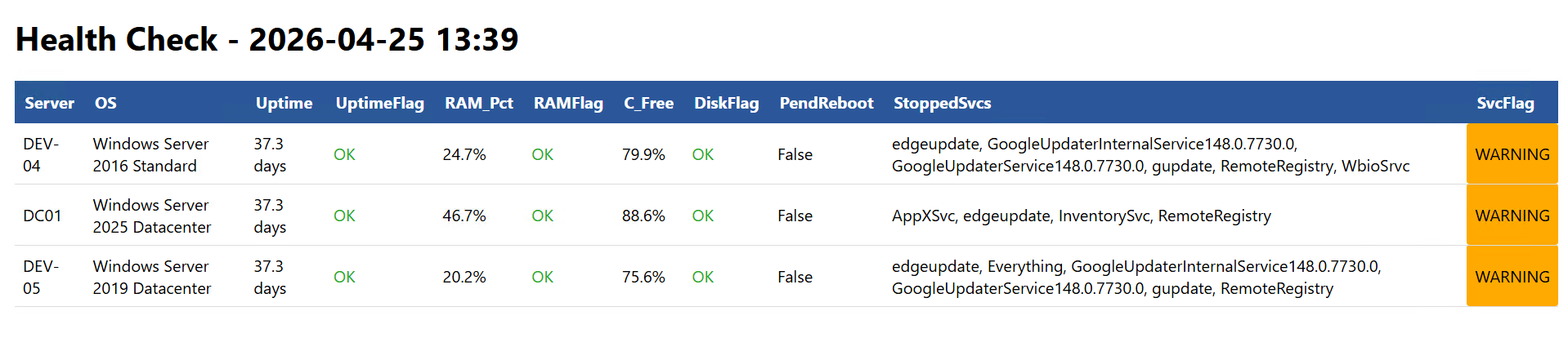
The MapsBroker, sppsvc, TrustedInstaller, and SysMain exclusion filter matters — those services stop and start on their own. Without it you get false positives on every run.
Credential Handling for Scheduled Scripts
One thing all the scripts above have in common: they need credentials for unattended runs. Here’s how to store them safely.
# Run this ONCE interactively — encrypts with DPAPI, tied to your user account + machine
Get-Credential | Export-Clixml "C:\Scripts\cred-svcaccount.xml"

# In scheduled scripts, load without prompts
$cred = Import-Clixml "C:\Scripts\cred-svcaccount.xml"
$sessions = New-CimSession -ComputerName $servers -Credential $cred

# For SSL connections across network boundaries
$sslOption = New-CimSessionOption -UseSsl
$session = New-CimSession -ComputerName "DMZ-SRV01" -SessionOption $sslOption -Port 5986 -Credential $cred
Don’t use CredSSP for the second-hop problem. Microsoft flags it as a security risk – if the first hop gets compromised, your credentials travel everywhere. Use Kerberos constrained delegation instead.
If you’re managing a larger fleet and want a GUI on top of this kind of data – device health, services, processes, updates – I built SKYLAR for exactly that. It gives you a centralized dashboard for Windows device management without having to script every query yourself.
Every script above follows the same pattern: create sessions, do the work, clean up. Once that clicks, you can build any fleet management tool on top of CimSession. For more PowerShell automation patterns, check my post on advanced networking with PowerShell.