Virtualization has continued to evolve rapidly, and one of the most impactful features in VMware vSphere is the integration of virtual GPU (vGPU) technology. This feature enables virtual machines (VMs) to share physical GPU resources, thus providing enhanced graphics and computational capacity. This capability is ideal for tasks involving intensive graphics and computation, such as AI, machine learning, and high-end graphical applications. In this guide, we’ll walk you through the steps required to successfully configure and deploy NVIDIA vGPU in vSphere 8.
Why NVIDIA vGPU?
Before we get into the nuts and bolts, let’s quickly summarize why NVIDIA vGPU is worth considering:
- GPU Resource Sharing: Allows multiple VMs to share the resources of a single physical GPU, reducing hardware costs and optimizing GPU utilization.
- Scalability: Easily scale your workloads with high-performance computing capabilities spread across multiple VMs.
- Improved User Experience: Enhanced graphical performance for VDI environments ensures a smoother, more responsive user experience.
Prerequisites
To get started, it’s essential that your environment meets the following requirements:
NVIDIA vGPU-Capable GPU: Verify that your hardware is compatible with NVIDIA vGPU technology, such as the NVIDIA A100, RTX 6000, or GRID GPUs. Compatibility with specific GPUs can be checked on the NVIDIA vGPU software documentation.
VMware vSphere: Ensure your ESXi host is running a vSphere version that supports vGPU features. NVIDIA vGPU software requires the vSphere Foundation edition of VMware vSphere Hypervisor (ESXi) or a vSphere Enterprise Plus license.
- You will need a vCenter Server instance to manage and configure NVIDIA GRID vGPU profiles. The configuration of vGPU profiles is performed at the vCenter Server level, not directly on the ESXi host.
NVIDIA vGPU Software: Download the appropriate NVIDIA vGPU drivers and software from the NVIDIA website. Always use the versions that match both your GPU model and vSphere version.
Step 1: Enter Maintenance Mode
To make changes safely, you’ll first need to put your ESXi host into Maintenance Mode. Open an SSH session to your ESXi host (you can use tools like PuTTY) and run the following command:
vim-cmd hostsvc/maintenance_mode_enter
Entering Maintenance Mode safely halts running VMs and prevents operations that could interfere with the installation of the NVIDIA vGPU software and drivers.
Step 2: Install Host Driver and Management Daemon
Install NVIDIA vGPU Driver:
From your SSH session, install the driver with the following command:
esxcli software vib install -d /vmfs/volumes/[datastore-id]/NVIDIA-vGPU-VMware_ESXi_8.x-<version>.zip
Install GPU Management Daemon:
Now, install the GPU management daemon to monitor GPU performance on the host:
esxcli software vib install -d /vmfs/volumes/[datastore-id]/NVIDIA-GPU-mgmt-daemon_<version>.zip
Reboot the ESXi Host
After installing the NVIDIA vGPU drivers and management software, it’s important to reboot your ESXi host to apply the changes.
Use the following command to reboot your ESXi host:
reboot
Step 3: Verify vGPU Installation
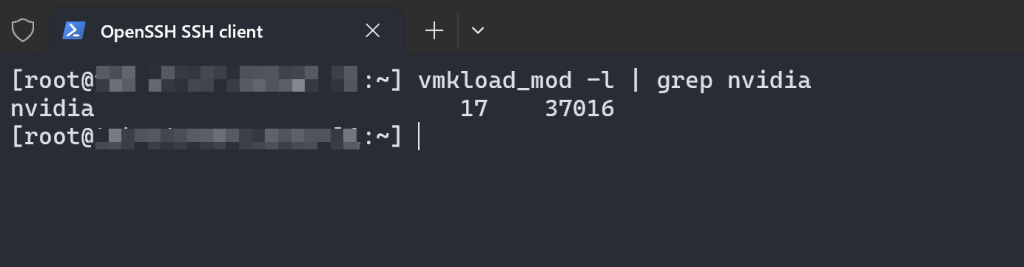
Once your ESXi host is back online after the reboot, it’s crucial to verify the successful loading of NVIDIA vGPU components.
Verify NVIDIA Kernel Module:
Open an SSH session to your ESXi host and run the following command:
vmkload_mod -l | grep nvidia
Check NVIDIA GPU Management Daemon:
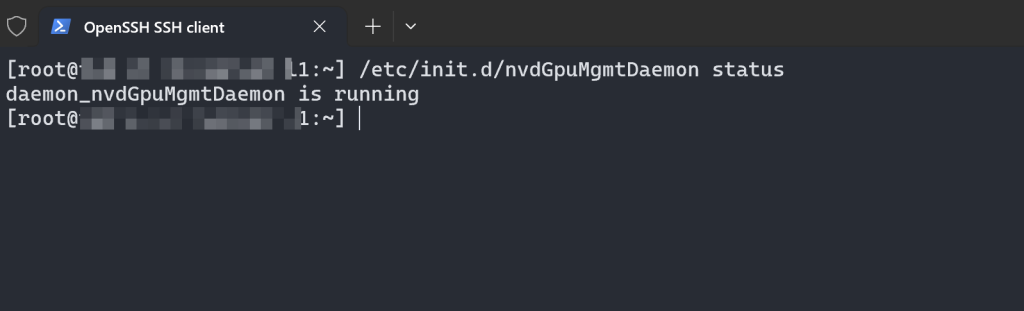
To ensure that the NVIDIA GPU Management Daemon (
nvdGpuMgmtDaemon) is running, execute the following command:
/etc/init.d/nvdGpuMgmtDaemon status
Expected Output:
- You should see a status indicating that the service is “Running,” confirming the GPU management daemon is active.
Why These Verifications Matter
Ensuring that both the NVIDIA kernel module and GPU management daemon are running correctly is vital to ensuring that your vGPU installation is functioning as expected. Any issues detected here should be addressed before proceeding.
Step 4: Exit Maintenance Mode
With verification complete, bring the ESXi host back online by exiting Maintenance Mode.
Run the following command:
vim-cmd hostsvc/maintenance_mode_exit
Step 5: Configure vGPU Profiles via vCenter
With the ESXi host back online, you can now configure NVIDIA vGPU profiles for your VMs. Remember, this operation can only be performed using vCenter Server.
- Log in to vCenter Server: Use your vSphere Web Client to log into the vCenter Server instance associated with your ESXi host.
Edit VM Settings:
- Right-click the Powered-Off VM for which you want to allocate vGPU resources.
- Select Edit Settings.
Add a PCI Device:
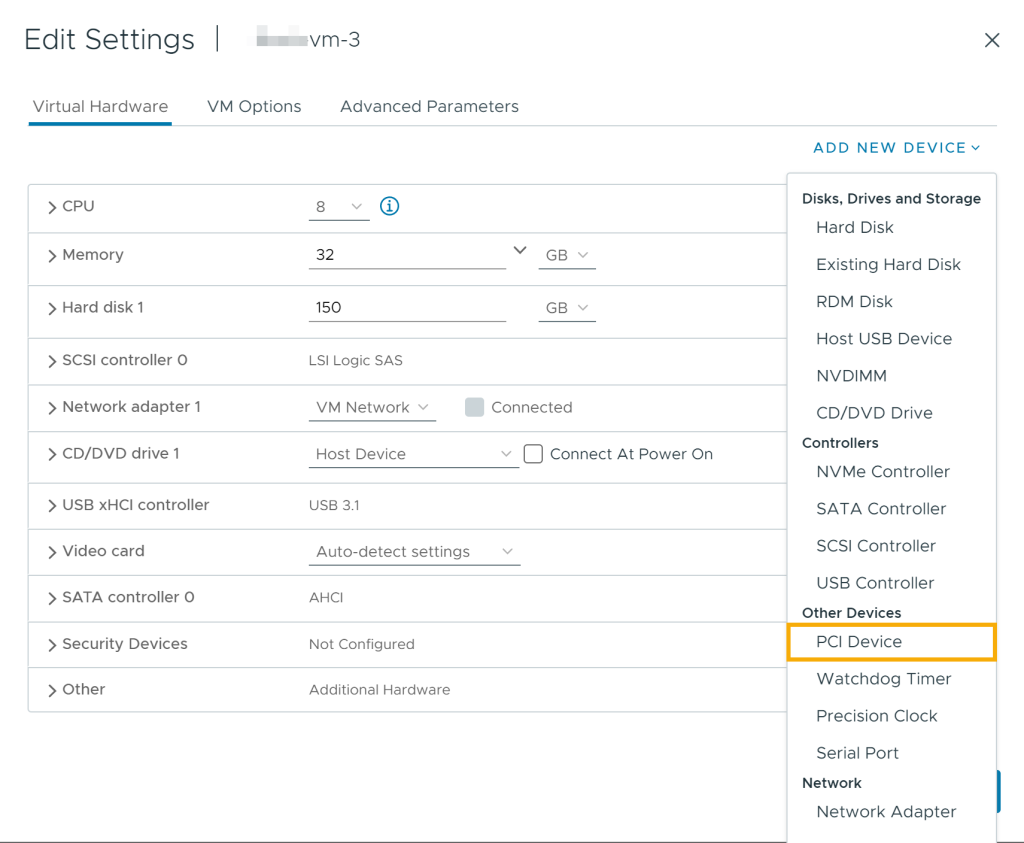
- In the VM’s hardware settings, click Add New Device > PCI Device.
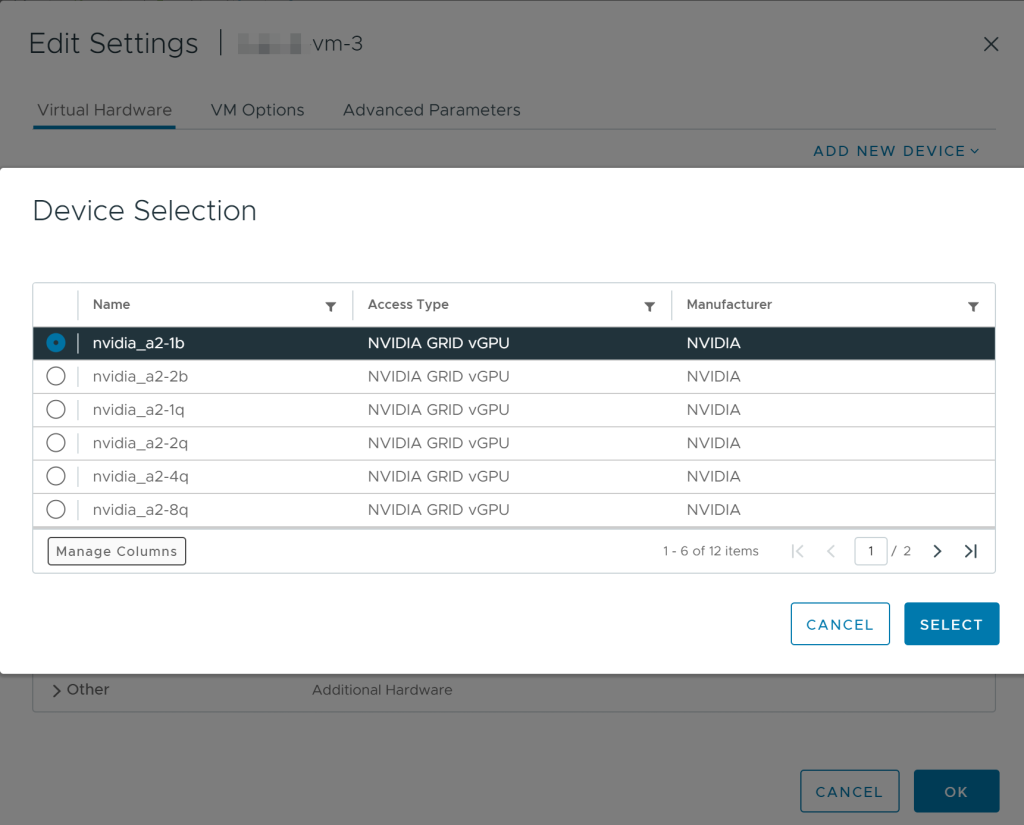
- Select the NVIDIA GPU from the list of available devices.
- Full RAM Reservation: When configuring a VM to use a vGPU, it is mandatory to fully reserve the RAM allocated to that VM.
Why Full RAM Reservation is Important:
When a vGPU is assigned to a VM, the VM needs guaranteed access to the allocated memory to ensure consistent and stable performance. Full RAM reservation ensures that the host does not reclaim any portion of the VM’s allocated memory for other tasks, which would disrupt the functioning of the vGPU.
Choose a vGPU Profile:
- Choose the appropriate vGPU profile (e.g.,
A100-1Q,M60-1B) based on your VM’s requirements for memory and performance.
Save and Power On VM:
- Click OK to save the settings and power on the VM.
Step 6: Install NVIDIA Drivers in the VM
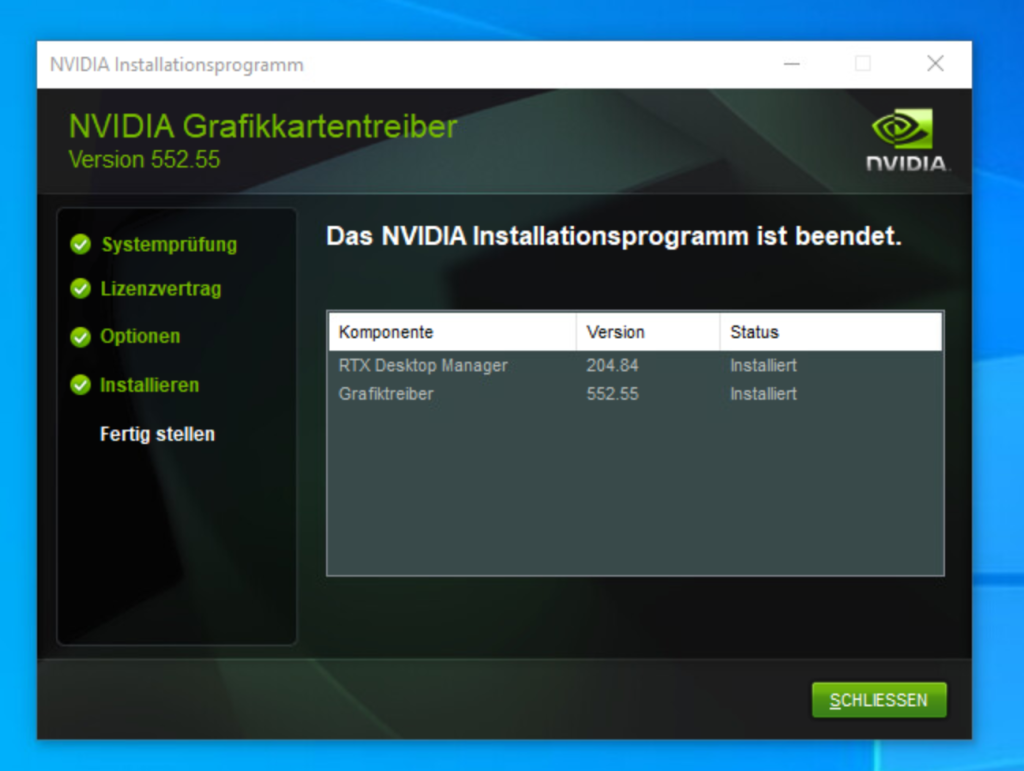
For the vGPU to function within your VM, you must install the appropriate NVIDIA drivers.
Download and Install NVIDIA Driver:
- Inside the guest OS of the VM, download the correct NVIDIA driver package.
- Run the installer and follow the prompts to complete the installation.
Restart the VM:
Reboot the VM to complete the driver installation and enable full vGPU support.
Verification
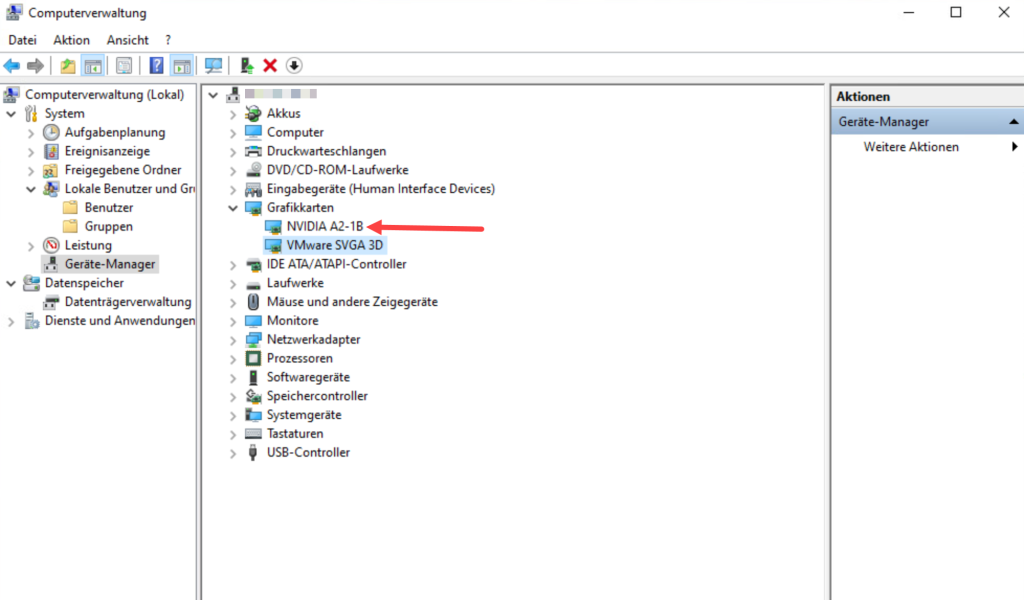
After rebooting, verify that the GPU is recognized and operational by checking the Device Manager
Using GPU monitoring tools (such as nvidia-smi).
Step 7: Verify vGPU Configuration and Utilization
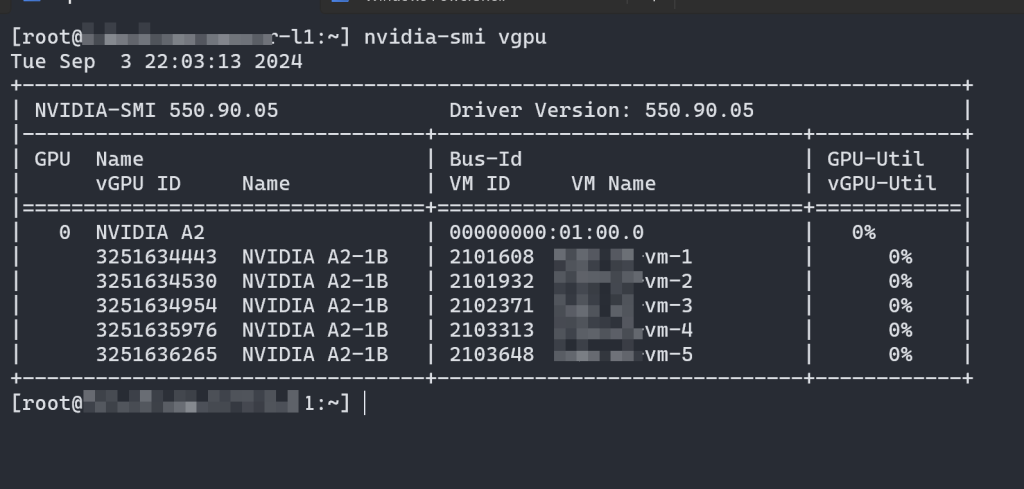
To check the status and details of vGPUs assigned to your VMs, use the following command on the ESXi host:
nvidia-smi vgpu
Expected Output:
This command provides comprehensive information about the vGPUs that have been created on the physical GPU, including which VMs have been assigned vGPUs, vGPU IDs, GPU utilization, and more.
Conclusion
There you have it—a complete guide to configuring NVIDIA vGPU in VMware vSphere 8! By following these steps, you’ve set up a powerful virtualized environment capable of handling graphics-intensive and compute-heavy tasks across multiple VMs.
Remember, the vCenter Server is a critical piece of infrastructure in this setup. Beyond just configuring vGPU profiles, vCenter provides a centralized platform to manage, monitor, and optimize your entire vSphere environment.
Whether you’re leveraging AI, rendering complex visuals, or enhancing virtual desktop environments, NVIDIA vGPU paired with vSphere 8 offers the flexibility and power necessary to meet these modern challenges efficiently.