PowerShell offers a powerful way to automate DNS configurations and management, making it easier to set up, secure, and maintain DNS servers. In this article, I’ll explore how you can use PowerShell to manage DNS in your Active Directory environment.
For this scenario, we will set up DC1 (IP: 10.10.10.10) and DC2 (IP: 10.10.10.11) as domain controllers and DNS servers as in the following digram
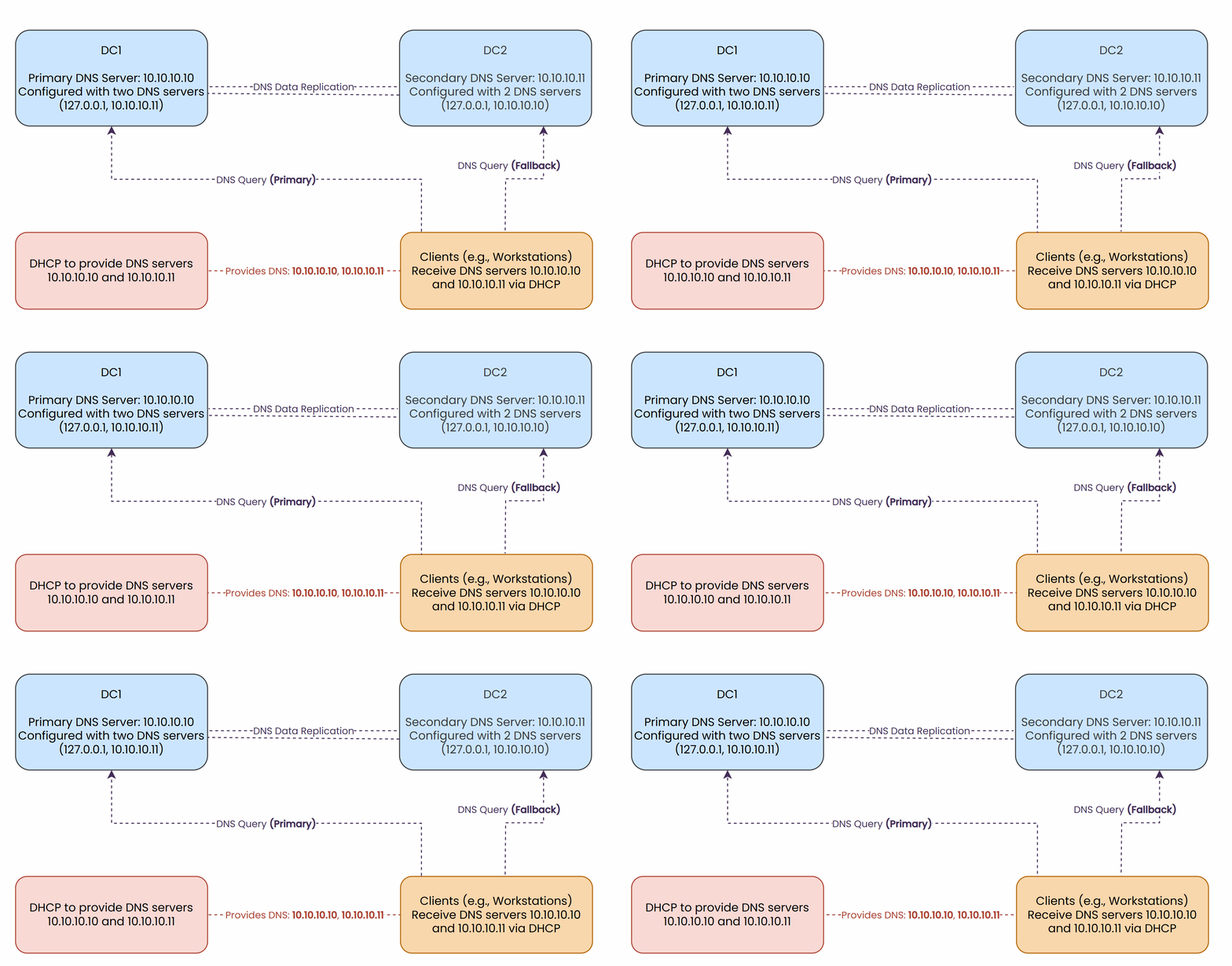
We will start by installing the DNS server role on DC2. Since DC1 already has DNS installed (from a prior Active Directory setup)
Import-Module -Name ServerManager -WarningAction SilentlyContinue
Install-WindowsFeature -Name DNS -IncludeManagementTools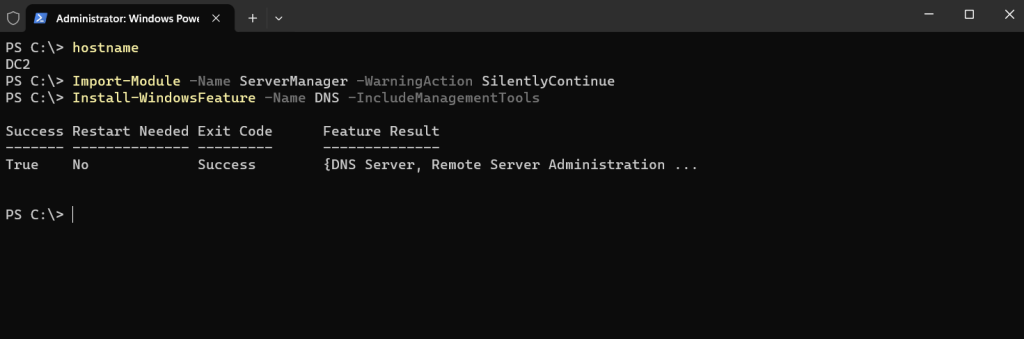
$SB1 = {
    Set-DnsServerRecursion -Enable $true
    Set-DnsServerCache -MaxKBSize 20480  # 20 MB cache
    $EDNSHT = @{
        EnableProbes    = $true
        EnableReception = $true
    }
    Set-DnsServerEDns @EDNSHT
    Set-DnsServerGlobalNameZone -Enable $true
}

Invoke-Command -ScriptBlock $SB1 -ComputerName DC1
Invoke-Command -ScriptBlock $SB1 -ComputerName DC2Configuring DC1
$SB2 = {
    $NIC = Get-NetIPInterface -InterfaceAlias "Ethernet" -AddressFamily IPv4
    $DNSSERVERS = ("127.0.0.1", "10.10.10.11")
    $DNSHT = @{
        InterfaceIndex  = $NIC.InterfaceIndex
        ServerAddresses = $DNSSERVERS
    }
    Set-DnsClientServerAddress @DNSHT
    Start-Service -Name DNS
}

Invoke-Command -ScriptBlock $SB2 -ComputerName DC1
Configuring DC2
$SB3 = {
    $NIC = Get-NetIPInterface -InterfaceAlias "Ethernet" -AddressFamily IPv4
    $DNSSERVERS = ("127.0.0.1", "10.10.10.10")
    $DNSHT = @{
        InterfaceIndex  = $NIC.InterfaceIndex
        ServerAddresses = $DNSSERVERS
    }
    Set-DnsClientServerAddress @DNSHT
    Start-Service -Name DNS
}

Invoke-Command -ScriptBlock $SB3 -ComputerName DC2
Integrating DNS with DHCP
To ensure clients (e.g., workstations) use both DNS servers, we update the DHCP scope on DHCP Server to distribute the DNS server IPs.
$DNSOPTIONHT = @{
    DnsServer  = "10.10.10.11", "10.10.10.10"  # Client DNS Servers
    DnsDomain = "YH.local"
    Force     = $true
}
Set-DhcpServerv4OptionValue @DNSOPTIONHT -ComputerName DHCP01
Securing the DNS Zone
$DNSSSB = {
    $SBHT = @{
        Name = "YH.local"
        DynamicUpdate = "Secure"
    }
    Set-DnsServerPrimaryZone @SBHT
}
Invoke-Command -ComputerName DC1 -ScriptBlock $DNSSSB
Invoke-Command -ComputerName DC2 -ScriptBlock $DNSSSB
Verifying DNS Settings
$DNSRV = Get-DnsServer -ComputerName DC2.yh.local
$DNSRV | Select-Object -ExpandProperty ServerRecursion
$DNSRV | Select-Object -ExpandProperty ServerCache
$DNSRV | Select-Object -ExpandProperty ServerEDns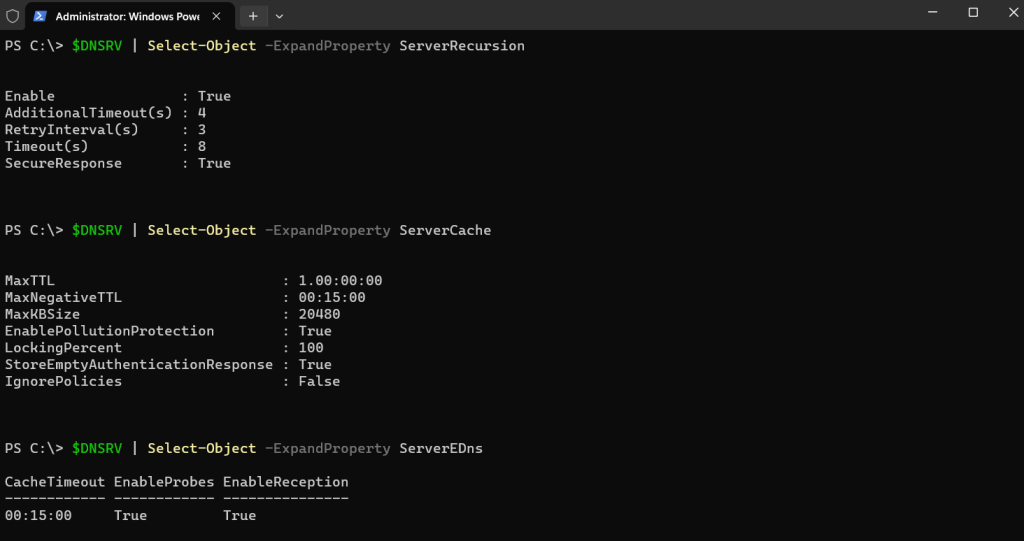
Create a New Primary Forward DNS Zone
$ZoneParams = @{
    Name               = 'SkyNet.Local'
    ResponsiblePerson  = 'hostmaster.skynet.local.'
    ReplicationScope   = 'Domain'
    ComputerName       = 'DC1.YH.Local'
}
Add-DnsServerPrimaryZone @ZoneParams -Verbose
Create a Reverse Lookup Zone
$ReverseZoneParams = @{
    NetworkID          = '10.10.10.0/24'
    ResponsiblePerson  = 'dnsadmin.yh.local.'
    ReplicationScope   = 'Forest'
    ComputerName       = 'DC1.YH.Local'
}
Add-DnsServerPrimaryZone @ReverseZoneParams
Register DNS for Both Domain Controllers
Register-DnsClient
Invoke-Command -ComputerName DC2 -ScriptBlock {Register-DnsClient}
This step produces no console output but ensures the DNS clients on both DCs are synchronized with the DNS server.
Verify DNS Zones on DC1
Get-DnsServerZone -ComputerName DC1 | Format-Table -AutoSize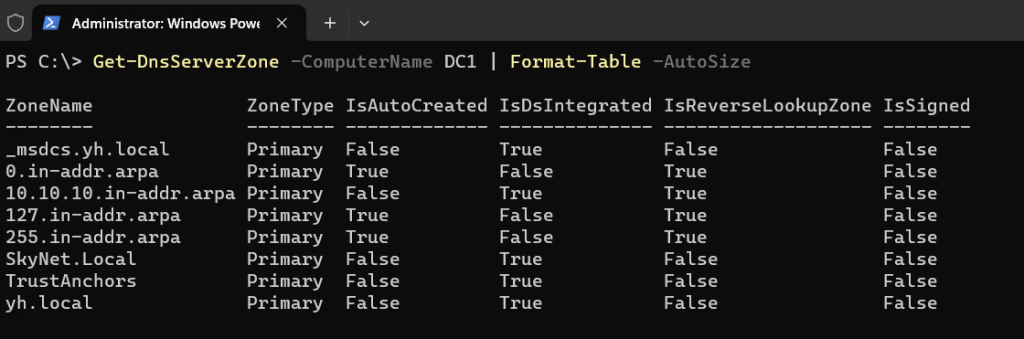
Adding Resource Records to the SkyNet.Local Zone
Now, let’s add some resource records to the SkyNet.Local zone. We’ll add:
- An A record to map Main to an IP address.
- A CNAME record to alias Email to Main.SkyNet.Local.
- An MX record to specify the mail server for the domain.
Add an A Record
$ARecordParams = @{
    ZoneName        = 'SkyNet.Local'
    A               = $true
    Name            = 'Main'
    AllowUpdateAny  = $true
    IPv4Address     = '192.168.1.100'
}
Add-DnsServerResourceRecord @ARecordParamsAdd a CNAME Record
$CNameParams = @{
    ZoneName        = 'SkyNet.Local'
    Name            = 'Email'
    HostNameAlias   = 'Main.SkyNet.Local'
}
Add-DnsServerResourceRecordCName @CNameParamsAdd an MX Record
$MXParams = @{
    Preference     = 20
    Name           = '.'
    TimeToLive     = '2:00:00'
    MailExchange   = 'Email.SkyNet.Local'
    ZoneName       = 'SkyNet.Local'
}
Add-DnsServerResourceRecordMX @MXParamsRestart-Service -Name DNS
$ScriptBlock = {Restart-Service -Name DNS}
Invoke-Command -ComputerName DC2 -ScriptBlock $ScriptBlockThis step ensures that AD replication propagates the DNS zone data between the two DCs.
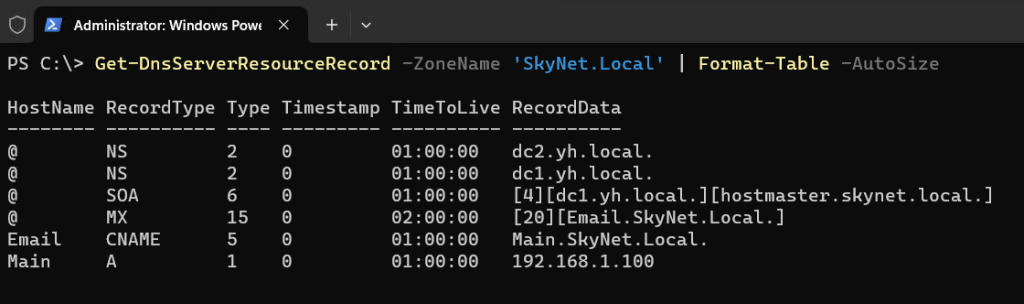
Check Resource Records in the SkyNet.Local Zone
Get-DnsServerResourceRecord -ZoneName 'SkyNet.Local' | Format-Table -AutoSizeThis command displays all RRs in the SkyNet.Local zone, including the A, CNAME, and MX records we added.
Testing DNS Resolution from DC1 and DC2
Test the CNAME Record from DC1
Resolve-DnsName -Server DC1.YH.Local -Name 'Email.SkyNet.Local'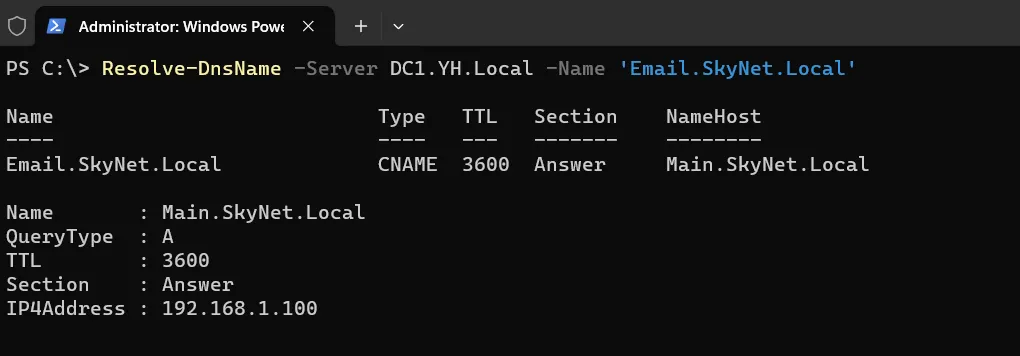
Test the MX Record from DC2
Resolve-DnsName -Server DC1.YH.Local -Name 'SkyNet.Local' -Type MX
Test the Reverse Lookup Zone
Finally, let’s test the reverse lookup zone by resolving an IP address back to a hostname.
Resolve-DnsName -Name '10.10.10.10'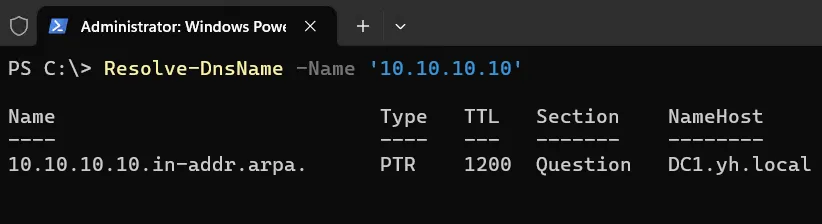
Configuring DNS Forwarding
When the DNS server receives a query it holds no record of, it can use a recursive process to find a DNS server that will resolve the request.
For internal domains or merged networks, however, conditional forwarding is the better option. This allows the DNS server to forward queries to certain servers, skipping recursion entirely. Here is an example how you can set this:
1. Obtaining the IP Addresses of DNS Servers for Yh.do
$NameServers = Resolve-DnsName -Name YH.do -Type NS | Where-Object Name -eq 'YH.do'
$NameServers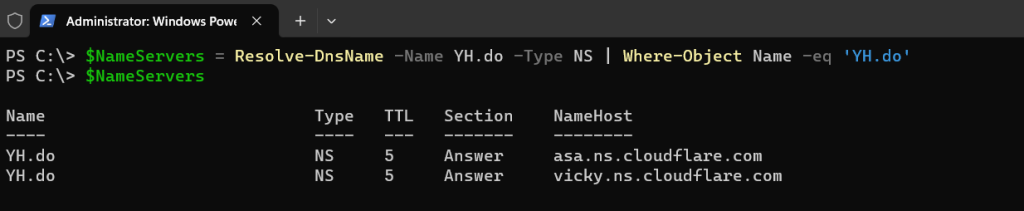
2. Obtaining the IPv4 Addresses for These Name Servers
$NameServerIPs = foreach ($Server in $NameServers) {
    (Resolve-DnsName -Name $Server.NameHost -Type A).IPAddress
}
$NameServerIPs$NameServerIPs
Adding a Conditional Forwarder on DC1
$CFHT = @{
    Name          = 'yh.do'
    MasterServers = $NameServerIPs
    ComputerName  = 'DC1.yh.Local'
}
Add-DnsServerConditionalForwarderZone @CFHT
Checking the Zone on DC1
Get-DnsServerZone -Name yh.do -ComputerName 'DC1.yh.Local'
This verifies that the conditional forwarder zone for YH.do has been successfully created on DC1.YH.Local.
Production Tips
- Redundancy: In a production environment, ensure you have at least two DNS servers per domain for redundancy. Update DHCP leases to include both DNS server IP addresses.
- Replication Scope: By default, AD-integrated zones replicate to all DCs in the forest. You can adjust the replication scope (e.g., to a specific domain) to optimize performance. See Microsoft’s documentation on AD-integrated zones for more details.
- Reverse Lookup Zones: While not always necessary, reverse lookup zones are useful for tools like nslookup or for security purposes (e.g., verifying the identity of a connecting client).