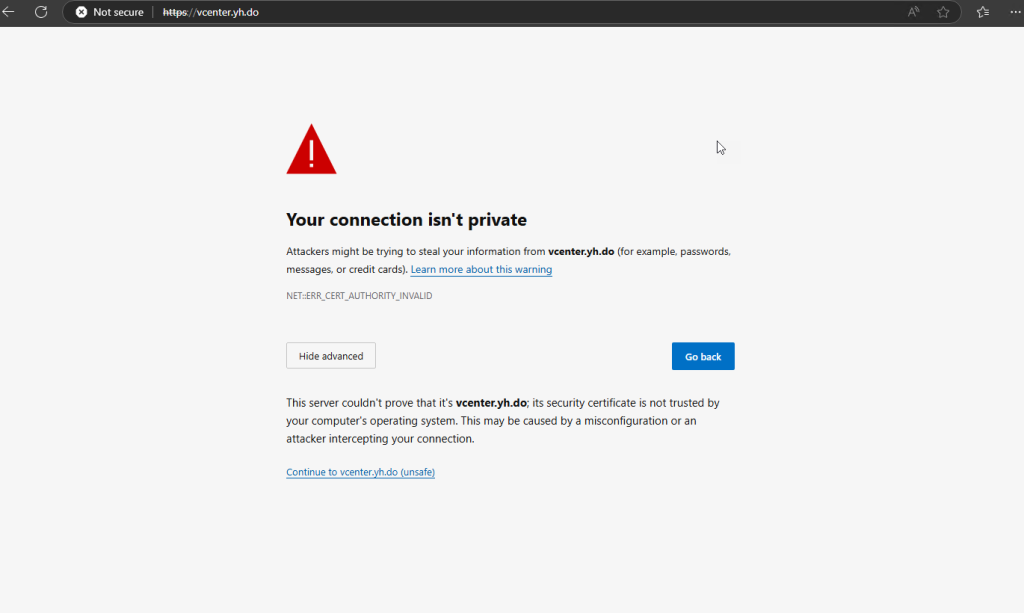
When accessing your vCenter through a browser, you might encounter a “Your connection isn’t private” error, as shown below:
This error occurs because the default vCenter certificate is self-signed and not trusted by browsers. To resolve this, you’ll need to replace it with a certificate signed by a trusted Certificate Authority (CA).
Preparing the Custom Certificates
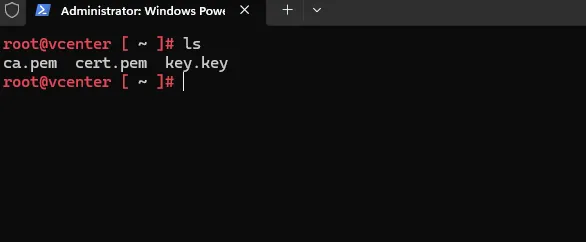
Before proceeding, ensure you have the following files ready:
cert.pem: The SSL certificate.key.key: The private key associated with the certificate.ca.pem: The root CA certificate or the full certificate chain.
Place these files in an accessible location on the vCenter server. In this example, the files are stored in the /root/ directory.
Special Note for Let’s Encrypt Users
If you’re using a Let’s Encrypt certificate, you’ll need to append the root certificate from Let’s Encrypt to the chain of trusted root certificates to ensure the certificate is fully trusted.
Download the root certificate from the following URL and append it to your ca.pem file:
https://letsencrypt.org/certs/isrgrootx1.pem.txt
vSphere Certificate Manager
The VMware vSphere Certificate Manager simplifies the process of replacing certificates. Follow these steps:
Open a terminal session and log in to the vCenter server.
Run the Certificate Manager using the command from shell:
/usr/lib/vmware-vmca/bin/certificate-manager
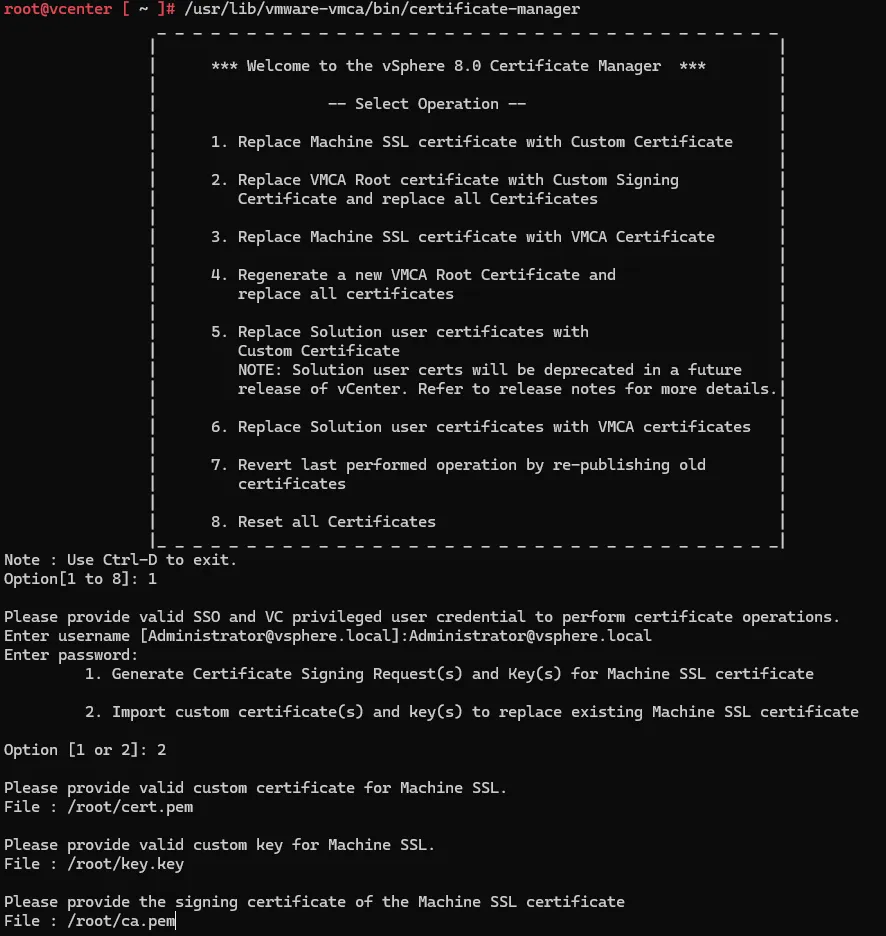
You will be greeted with the Certificate Manager menu:
Select Option 1: Replace Machine SSL certificate with Custom Certificate.
SSO Administrator Credentials
Enter the Single Sign-On (SSO) username and password.Custom Certificate and Key Files
- For the SSL certificate, provide the path to
cert.pem. - For the private key, provide the path to
key.key. - For the CA certificate, provide the path to
ca.pem
- For the SSL certificate, provide the path to
Confirm the inputs and proceed. The Certificate Manager will validate the files and replace the existing SSL certificate with the provided custom certificate.
Restart the vCenter services
service-control --stop --all
service-control --start --all
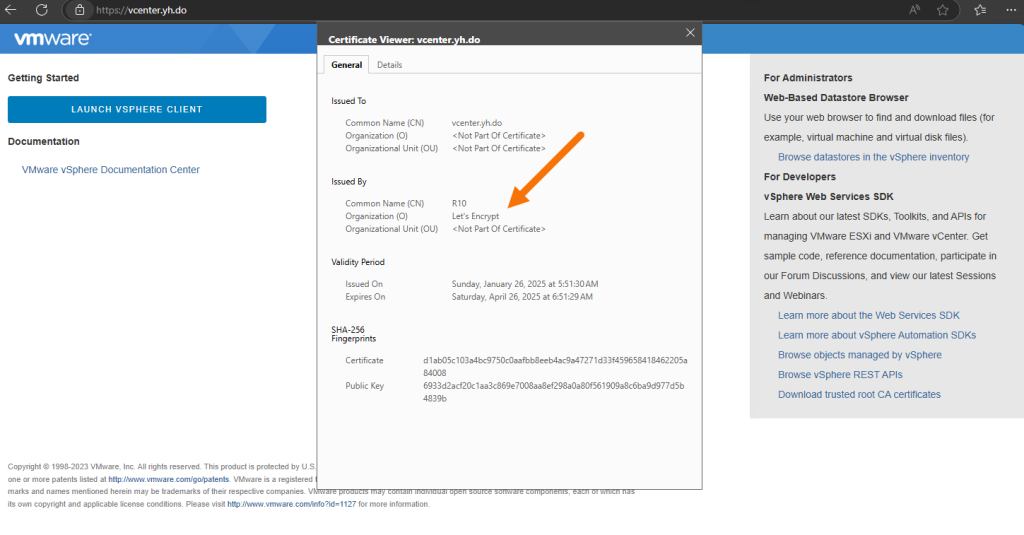
Open your browser and access the vCenter URL. The “Your connection isn’t private” error should no longer appear. The browser should now recognize the certificate as trusted.
Conclusion
Replacing the default vCenter SSL certificate with a custom one enhances security and eliminates browser trust issues.