In this blog post, we’ll walk through the process of deploying Veeam Backup & Replication servers on Windows machines using Ansible.
Prerequisites
Before we dive into the Ansible part, ensure the following prerequisites are met:
- Ansible installed on a control machine.
- A Windows Server where the Veeam Backup & Replication server will be installed.
- PowerShell Remoting enabled on the Windows Server.
Enabling PowerShell Remoting and Setting Up WinRM
We need to enable PowerShell Remoting and configure WinRM to allow Ansible to manage the Windows machine remotely.
Enable-PSRemoting -Force
- WinRM uses SSL certificates to secure remote connections. You must add a self-signed certificate to enable HTTPS:
New-SelfSignedCertificate -CertStoreLocation Cert:\LocalMachine\My -DnsName "BKPSRV"
Replace BKPSRV with your server’s DNS name if needed.
- You also need to set up a WinRM listener using your newly created certificate:
winrm create winrm/config/Listener?Address=*+Transport=HTTPS '@{CertificateThumbprint="AB192D69E9B1A1EC490F2996EA74982F18F70BAB"}'
Important: Replace AB192D69E9B1A1EC490F2996EA74982F18F70BAB with your actual certificate thumbprint.
- Open the necessary firewall port for HTTPS traffic (default is 5986):
New-NetFirewallRule -DisplayName "Allow WinRM HTTPS" -Enabled True -Protocol TCP -LocalPort 5986 -Action Allow
- Check the WinRM listener configuration:
winrm enumerate winrm/config/Listener
Setting Up Ansible for Veeam Installation
With PowerShell Remoting configured, we move on to Ansible. Here’s an example how you can set up the Ansible inventory and playbook for installing Veeam Backup & Replication.
In the inventory file inventory.ini, specify the connection details for the Windows server:
[veeam_servers]
SRVBKP ansible_host=<YOUR_SERVER_IP> ansible_user=<ADMIN_USERNAME> ansible_connection=winrm ansible_winrm_port=5986 ansible_winrm_scheme=https ansible_winrm_transport=ntlm ansible_winrm_server_cert_validation=ignore
- Replace
<YOUR_SERVER_IP>with your server’s actual IP address. - Replace
<ADMIN_USERNAME>with the administrative username for the server.
This setup assumes you’re ignoring SSL certificate validation. It’s usually fine for internal networks or test environments.
Ensure you have the appropriate role available. If not, you may need to install it via Ansible Galaxy:
ansible-galaxy collection install veeamhub.veeam
Create an Ansible playbook named veeam_install.yml to handle the Veeam installation. Here is an example:
---
- name: Install Veeam Backup & Replication Server
hosts: veeam_servers
become: false
tasks:
- name: Install Veeam Backup & Replication
include_role:
name: veeamhub.veeam.veeam_vas
tasks_from: vbr_install
vars:
version: "12"
iso_download: true
sql_install_username: "sql_admin_123"
sql_install_password: "Giraffe#88!"
sql_service_username: "svc_sql_srv"
sql_service_password: "P@ssw0rd_123!"
sql_username: "db_admin_user"
sql_password: "L3tme1n_789!"
sql_authentication: "1"
Execute the playbook:
ansible-playbook -i inventory.ini veeam_install.yml --ask-pass
The --ask-pass option prompts for the Windows user password for authentication.
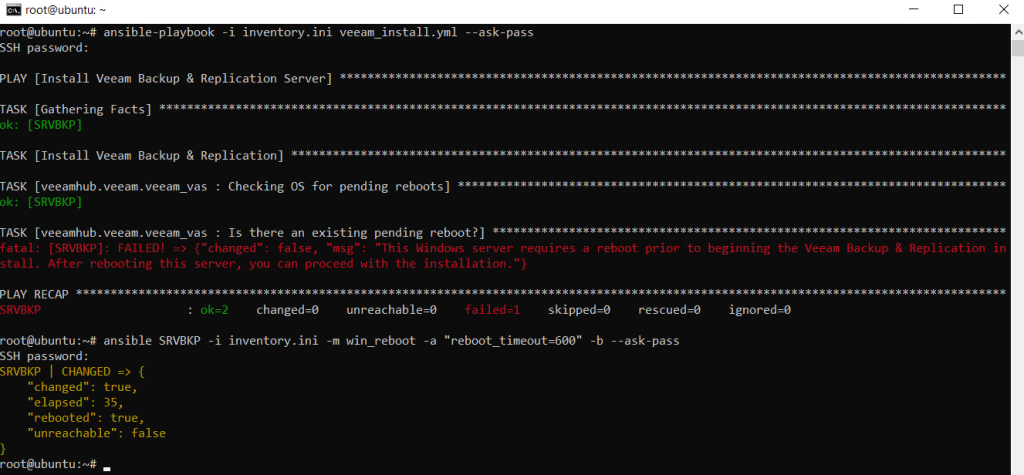
Once the Ansible playbook is executed, you might encounter an error related to a pending system reboot. This is common when the Windows server has pending updates or changes requiring a restart before new installations proceed.
You need to reboot the server before continuing with the installation. Use the following Ansible command to perform the reboot:
ansible SRVBKP -i inventory.ini -m win_reboot -a "reboot_timeout=600" -b --ask-pass
Explanation:
SRVBKP: Refers to the hostname or alias of your server in theinventory.inifile.inventory.ini: The inventory file containing your server details.win_reboot: The Ansible module used to reboot a Windows server.reboot_timeout=600: Specifies the maximum time to wait (in seconds) for the server to restart and become available again.--ask-pass: Prompts for the Windows user password for authentication.
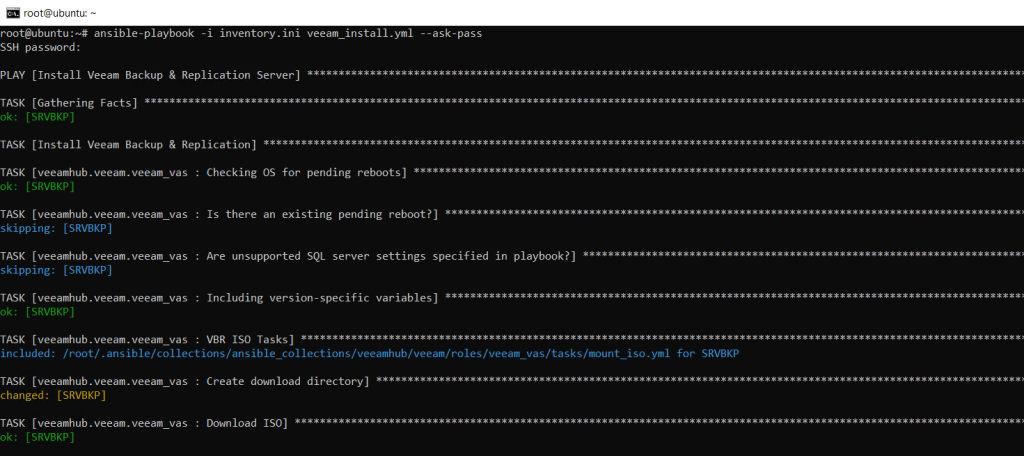
Once the server has successfully rebooted, re-run the playbook to continue the installation process:
ansible-playbook -i inventory.ini veeam_install.yml --ask-pass
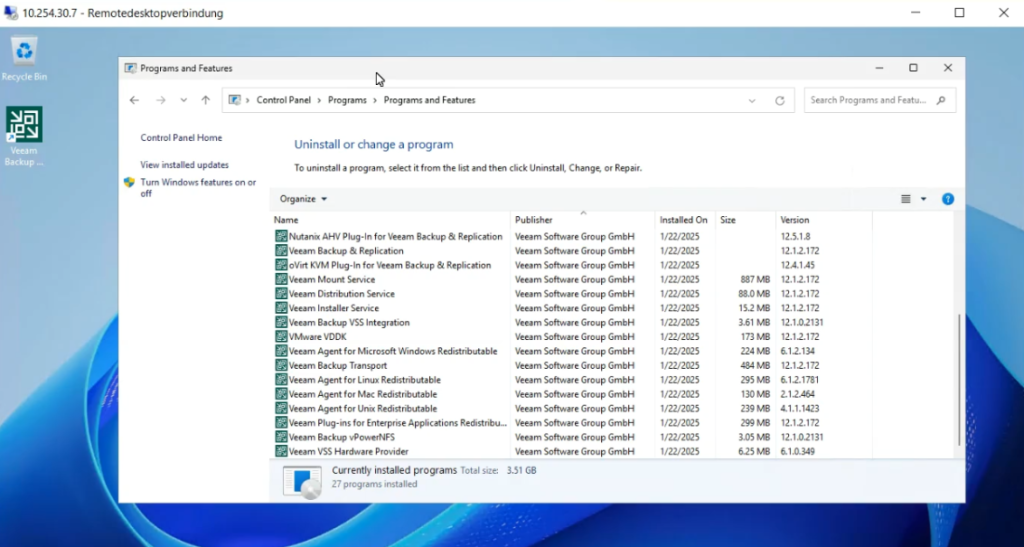
The playbook should proceed without further issues, completing the installation of Veeam Backup & Replication.
Conclusion
Automating the deployment of Veeam Backup & Replication servers using Ansible saves time and boosts confidence in infrastructure scalability and management.