Managing a VMware vSphere environment often involves repetitive tasks and manual interventions. This is where the vCenter Server API comes in, providing a powerful and flexible way to automate various aspects of your virtual infrastructure. In this blog post, we’ll delve into the vCenter API, exploring how to leverage its capabilities using PowerShell to retrieve valuable information about your virtual machines.
Understanding the vCenter API
The vCenter Server API is a RESTful API that allows you to interact with your vCenter Server instance programmatically. This means you can perform various actions like:
- Managing virtual machines: Create, delete, start, stop, clone VMs, and more.
- Managing resources: Create and manage datastores, networks, resource pools, and more.
- Monitoring performance: Retrieve performance metrics for your ESXi hosts and virtual machines.
- Configuring settings: Configure various vCenter Server settings.
Interacting with vCenter API Using PowerShell
PowerShell, with its robust scripting capabilities and native support for REST APIs, makes interacting with the vCenter API a breeze. Let’s break down a PowerShell script that utilizes the vCenter API to retrieve and display information about your virtual machines:
# Force PowerShell to use TLS 1.2
[Net.ServicePointManager]::SecurityProtocol = [Net.SecurityProtocolType]::Tls12

# Disable SSL certificate validation (For demonstration purposes only, not recommended for production)
Add-Type @"
    using System.Net;
    using System.Security.Cryptography.X509Certificates;
    public class TrustAllCertsPolicy : ICertificatePolicy {
        public bool CheckValidationResult(ServicePoint srvPoint, X509Certificate certificate, WebRequest request, int certificateProblem) {
            return true;
        }
    }
"@
[System.Net.ServicePointManager]::CertificatePolicy = New-Object TrustAllCertsPolicy

# Prompt the user for vCenter details
$vcServer = Read-Host "Enter vCenter IP or FQDN"
$username = Read-Host "Enter vCenter username"
$password = Read-Host "Enter vCenter password" -AsSecureString

# Convert the secure password to an unsecure string for API call (Not recommended for production, use secure methods instead)
$unsecurePassword = [Runtime.InteropServices.Marshal]::PtrToStringAuto([Runtime.InteropServices.Marshal]::SecureStringToBSTR($password))

# API Endpoints
$sessionURL = "https://$vcServer/rest/com/vmware/cis/session"
$vmListURL = "https://$vcServer/rest/vcenter/vm"

# Step 1: Obtain the Session Token using Invoke-RestMethod

# Prepare the credential headers for the API request
$basicAuth = [Convert]::ToBase64String([Text.Encoding]::ASCII.GetBytes("${username}:${unsecurePassword}"))
$headers = @{
    Authorization = "Basic $basicAuth"
}

# Execute the POST request to get the session token
$sessionTokenResponse = Invoke-RestMethod -Uri $sessionURL -Method Post -Headers $headers

# Check if we've got a token
if (-not $sessionTokenResponse.value) {
    Write-Error "Failed to obtain session token. Response: $($sessionTokenResponse | Out-String)"
    exit
}

# Extract the session token
$sessionToken = $sessionTokenResponse.value

# Step 2: Use the Session Token to List VMs using Invoke-RestMethod

# Prepare the authorization header using the session token
$headers = @{
    "vmware-api-session-id" = $sessionToken
}

# Execute the GET request to list VMs
$vmListResponse = Invoke-RestMethod -Uri $vmListURL -Method Get -Headers $headers

# Check if we received a response
if (-not $vmListResponse.value) {
    Write-Error "Failed to retrieve VM list. Response: $($vmListResponse | Out-String)"
    exit
}

# Step 3: Display VM Information, Power Status, and VMware Tools Status

# Loop through the VMs and display their names, IDs, Power status, and Tools status
$vmListResponse.value | ForEach-Object {
    # Prepare the VM power state URL
    $vmpowerStateURL = "$vmListURL/$($_.vm)/power"

    # Execute the GET request to get the power state of the current VM
    $vmPowerStateResponse = Invoke-RestMethod -Uri $vmpowerStateURL -Method Get -Headers $headers

    # Check if we received a response
    if (-not $vmPowerStateResponse.value) {
        Write-Error "Failed to retrieve VM power state. Response: $($vmPowerStateResponse | Out-String)"
        exit
    }

    # Prepare the VM Tools status URL
    $vmToolsURL = "$vmListURL/$($_.vm)/tools"

    # Execute the GET request to get the VMware Tools status
    $vmToolsResponse = Invoke-RestMethod -Uri $vmToolsURL -Method Get -Headers $headers

    # Check if we received a response
    if (-not $vmToolsResponse.value) {
        Write-Error "Failed to retrieve VMware Tools status. Response: $($vmToolsResponse | Out-String)"
        exit
    }

    # Extract and Print VM Power state and VMware Tools status with VM name and VM id
    Write-Host "VM Name: $($_.name), VM ID: $($_.vm), VM PowerState: $($vmPowerStateResponse.value.state)"
    Write-Host "VM Tools Status:"
    Write-Host "  Auto Update Supported: $($vmToolsResponse.value.auto_update_supported)"
    Write-Host "  Upgrade Policy: $($vmToolsResponse.value.upgrade_policy)"
    Write-Host "  Install Attempt Count: $($vmToolsResponse.value.install_attempt_count)"
    Write-Host "  Version Status: $($vmToolsResponse.value.version_status)"
    Write-Host "  Version Number: $($vmToolsResponse.value.version_number)"
    Write-Host "  Version: $($vmToolsResponse.value.version)"
    Write-Host "  Install Type: $($vmToolsResponse.value.install_type)"
    Write-Host "  Run State: $($vmToolsResponse.value.run_state)"
}
You can also run this script directly from here:
iex (irm yh.do/pswb/getvmstate.txt)Breaking Down the Script
Establishing the Connection:
- We begin by setting the security protocol to TLS 1.2 for secure communication.
- Important Note: Disabling SSL certificate validation is used here for demonstration purposes only and is not recommended for production environments. Always validate certificates in real-world scenarios.
- The script prompts you for your vCenter server details: IP address or FQDN, username, and password.
Obtaining the Session Token:
- Using the
Invoke-RestMethodcmdlet, a POST request is sent to the/rest/com/vmware/cis/sessionendpoint to obtain a session token. This token is essential for authenticating our subsequent API requests.
- Using the
Retrieving the VM List:
- With the session token in hand, another
Invoke-RestMethodcall targets the/rest/vcenter/vmendpoint, retrieving a list of all virtual machines managed by the vCenter server.
- With the session token in hand, another
Displaying VM Information:
- The script iterates through each VM in the retrieved list, making additional API calls to gather details like power state and VMware Tools status.
- Finally, the script presents a neatly formatted output, displaying the VM name, ID, power state, and relevant VMware Tools information for each virtual machine.
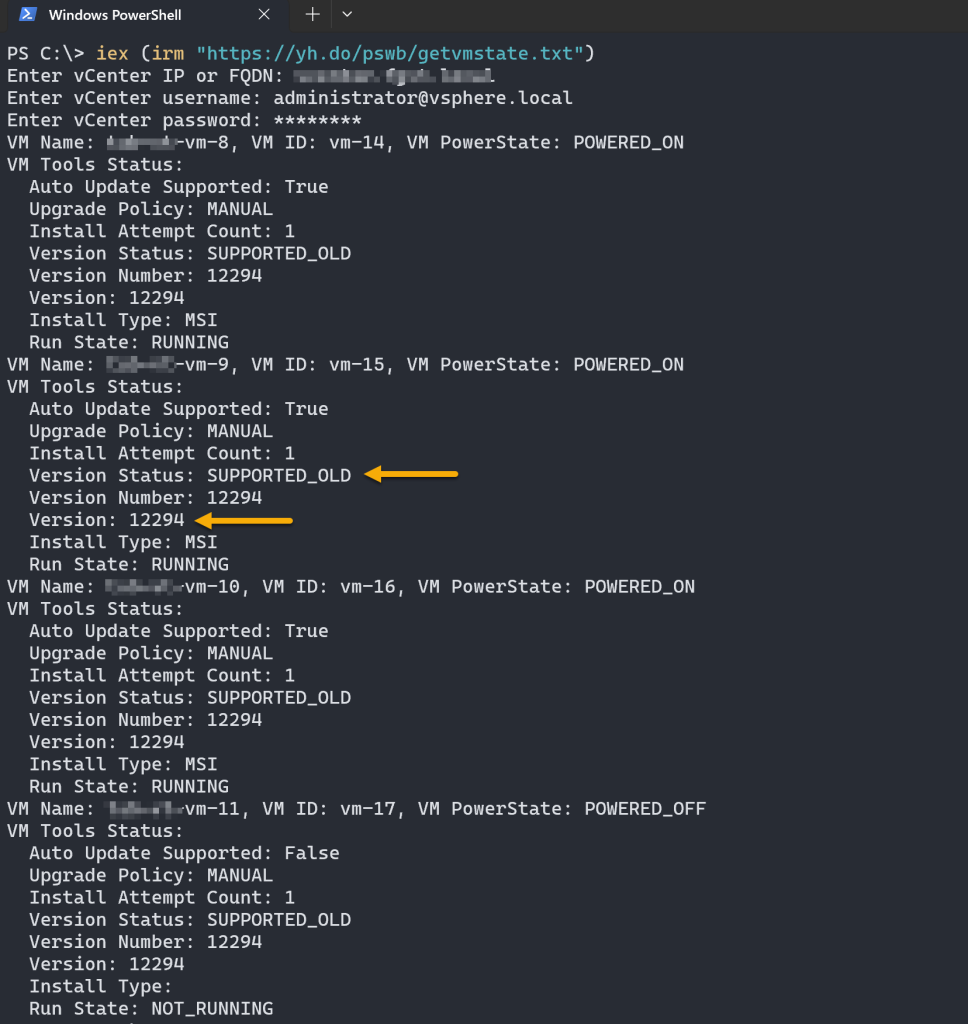
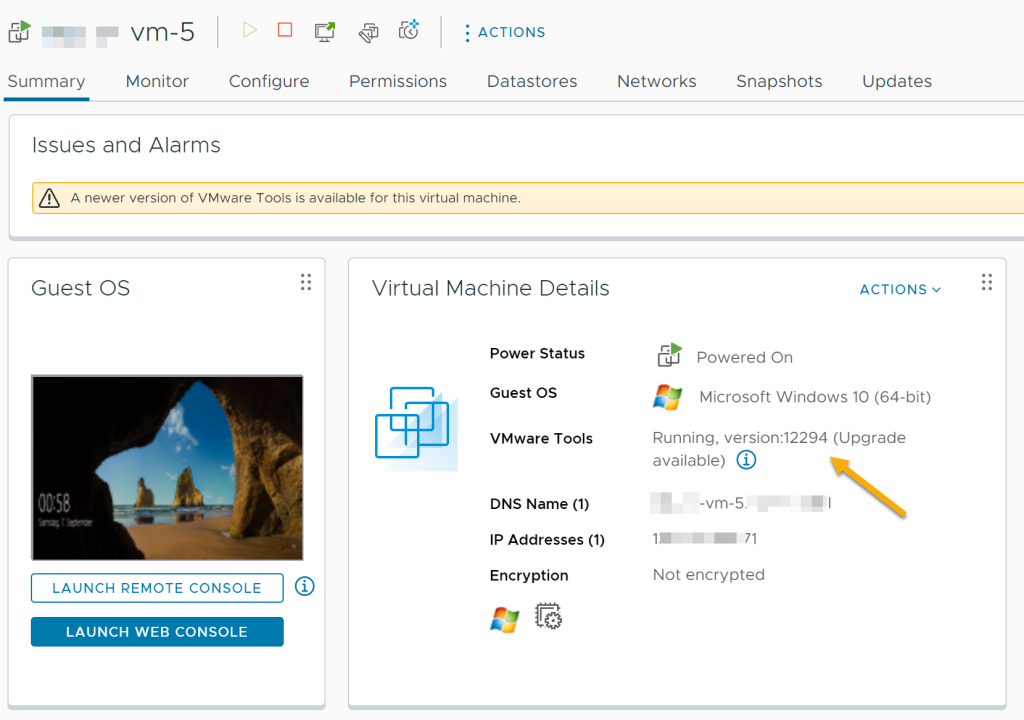
As you can see, VMware Tools requires an upgrade.
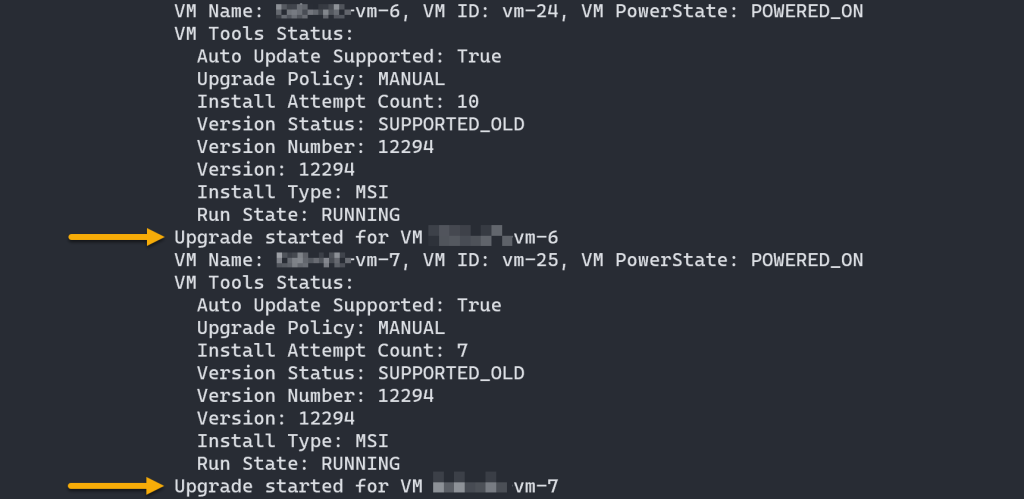
Now, let’s adjust our script to upgrade VMware Tools on all VMs that are not powered off, initiating an upgrade for those that are outdated, and handles any potential errors blocking the installation. You can run the updated script here:
iex (irm yh.do/pswb/vmtools-upgrade.txt)You’ll notice that the VMware Tools upgrade has initiated:
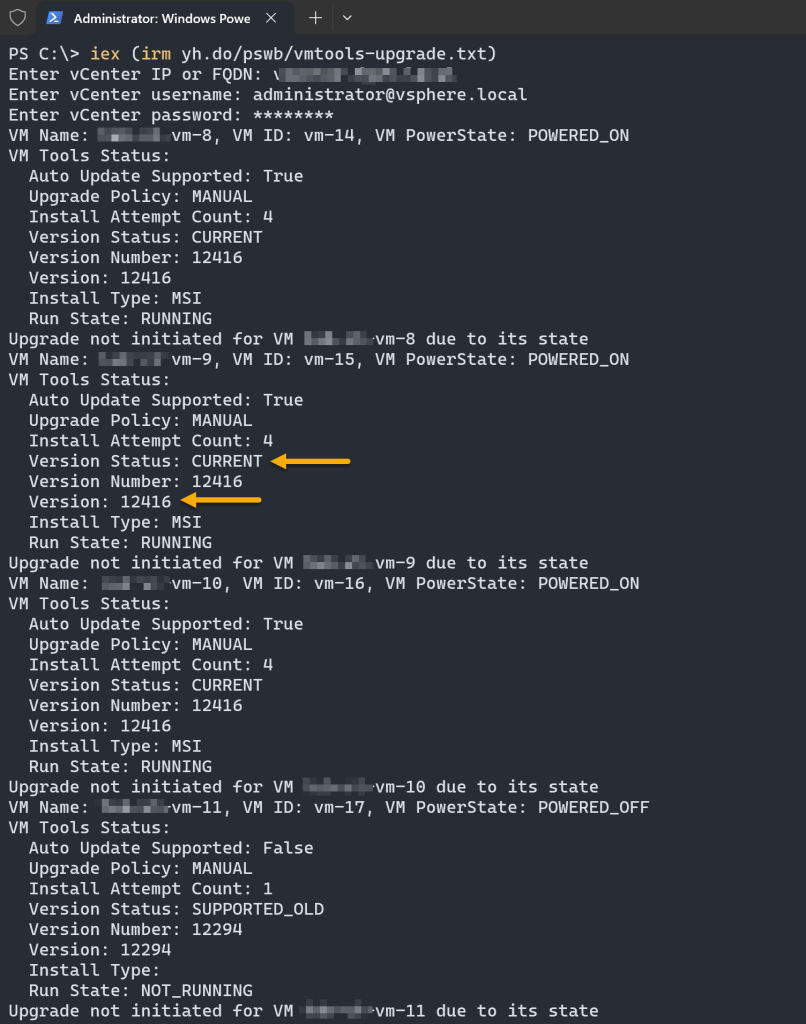
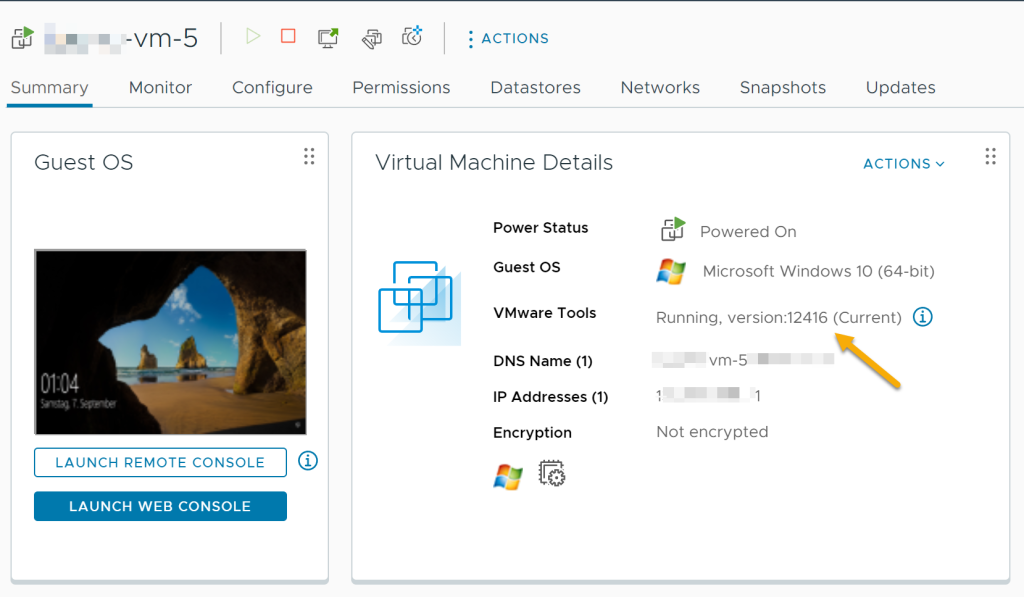
After the upgrade completes, VMware Tools will be successfully upgraded on all applicable VMs. You can run the script again to verify the version number and the status message indicating the latest version.
However, in case you encounter a response such as:
The remote server returned an error: (500) Internal Server Error.

This sort of error typically signals that the VM might require a reboot. A prior software installation or system update could be blocking the new installation of VMware Tools, even when attempting to do so through the vCenter web UI.
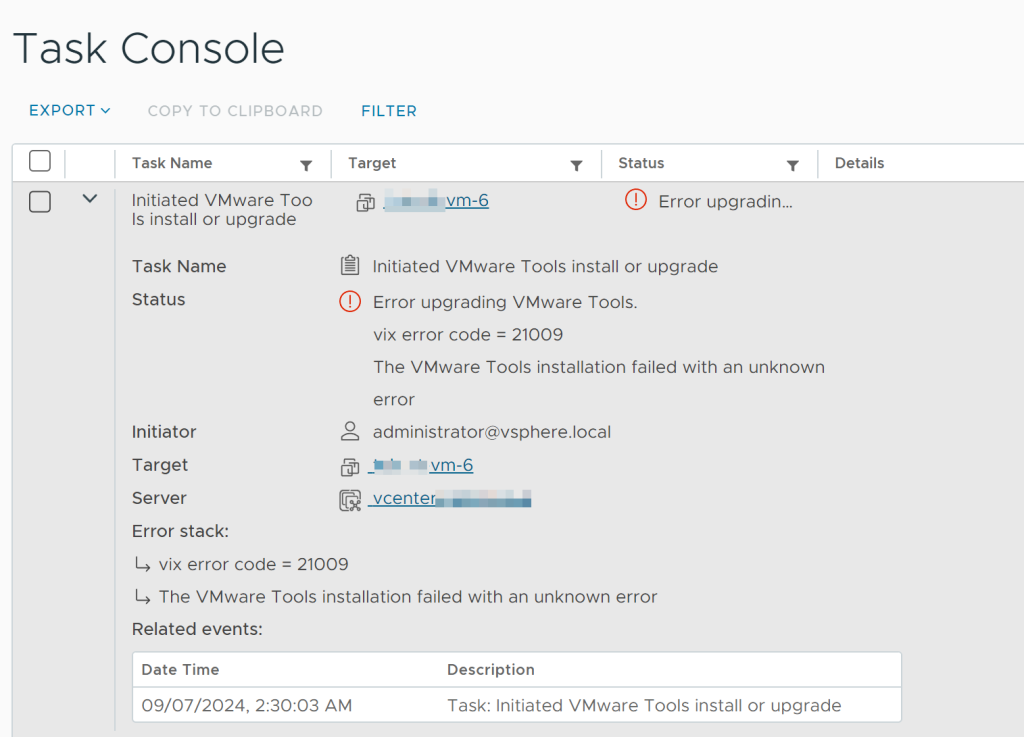
Try rebooting the VM and then initiate the VMware Tools installation script again.
Unleashing the Potential
This is just a glimpse of what you can achieve with the vCenter API and PowerShell. By mastering this potent combination, you can automate complex workflows, improve efficiency, and gain deeper control over your vSphere environment. In future posts, we’ll explore even more intricate examples and unlock the full potential of automating your VMware infrastructure.