
Enabling PCI device passthrough on VMware ESXi allows for greater performance and direct access to hardware devices for your virtual machines. This is especially useful for applications that require high-performance graphics or specialized hardware. In this guide, we’ll walk through the steps necessary to add a PCI device and activate passthrough settings.
Begin by logging into your ESXi server management interface. Make sure you have administrative privileges to make hardware changes.
Adding a PCI Device
Initial Setup
In the virtual machine settings for your VM:
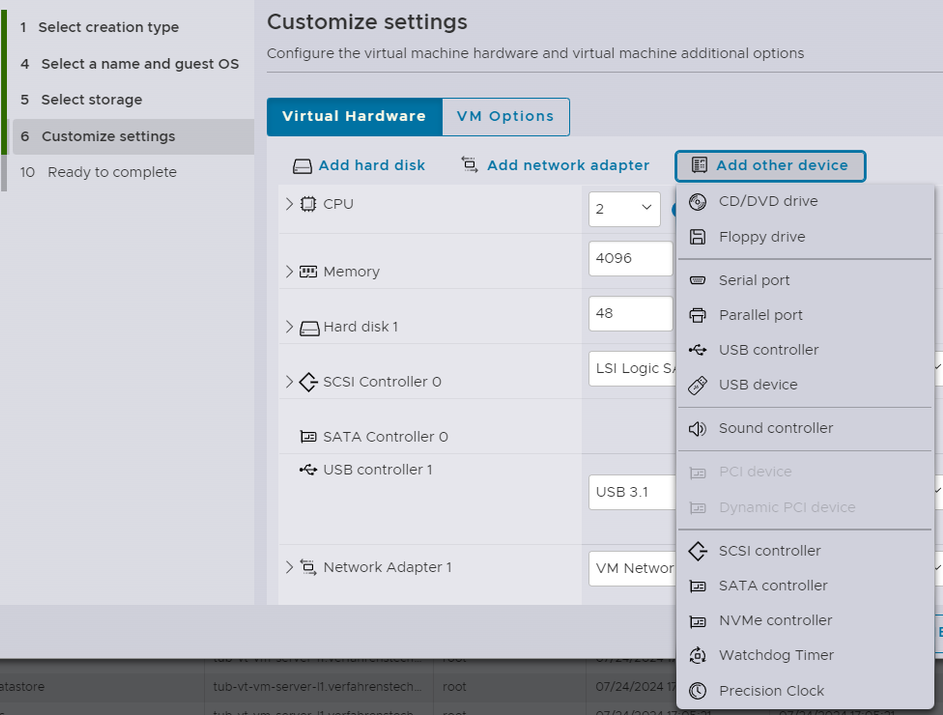
Navigate to Hardware Settings: Go to the ‘Customize Settings’ section where you manage your VM’s hardware configuration.
Add Other Devices: You may notice that initially, adding a PCI device might not be directly available under the options. Instead:
- Ensure that your ESXi host supports PCI passthrough by checking your hardware compatibility.
- Some devices and settings might require advanced configurations in the ESXi host’s BIOS or firmware.
Activating PCI Device Passthrough
Once you have verified your hardware compatibility, you can proceed with the following:
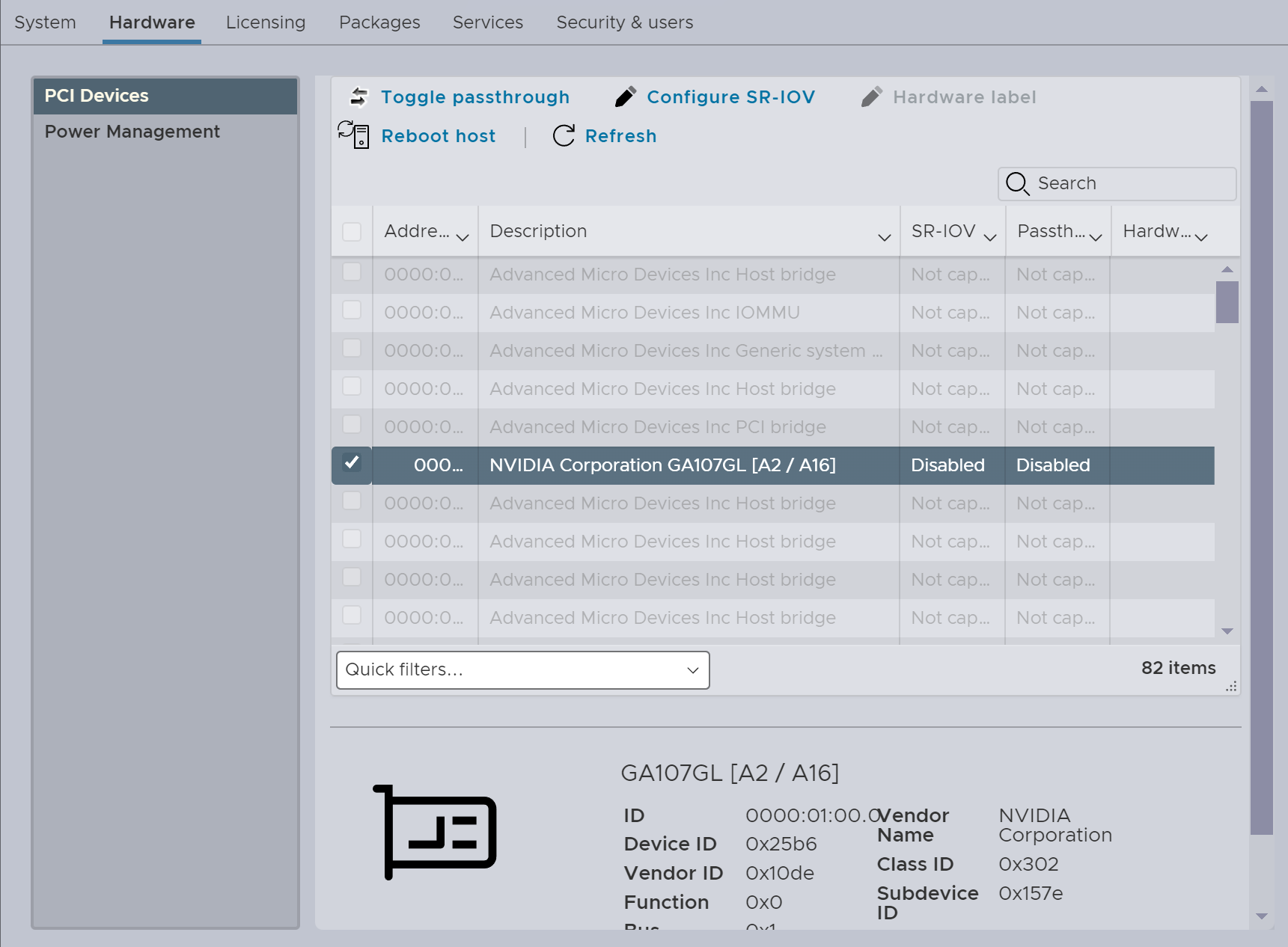
Navigate to PCI Devices: In the ESXi management interface, find the tab labeled ‘Hardware’.
Locate PCI Devices: Click on ‘PCI Devices’ to display a list of available PCI devices.
Enable Passthrough:
- Select the device you want to add and click Toggle passthrough for enabling passthrough.
- In the example, we have NVIDIA Corporation GA107GL [A2 / A16] in the list. This represents a GPU that we may want to passthrough to a VM.
- Confirm the changes by applying the configuration.
Configuring the Virtual Machine for PCI Passthrough
After activating passthrough for the PCI device:
Go Back to Your VM Settings: Return to the customized hardware settings of the VM you wish to configure.
Add PCI Device:
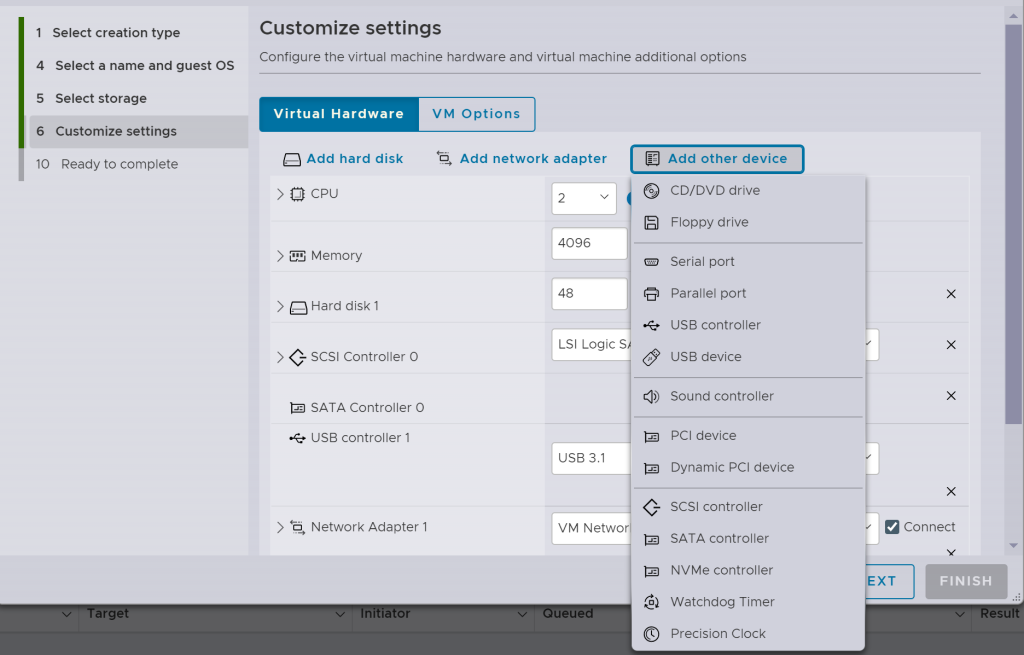
- In the ‘Add other device’ dropdown, locate the newly available PCI device.
- Select the device to incorporate it into your virtual machine settings.
Final Verification: Ensure that the device is listed among the VM’s hardware and is configured correctly.
Powering On the VM
Once your settings are applied:
Power on the Virtual Machine: Boot up your VM to ensure that it recognizes the PCI device.
Install Any Necessary Drivers: Within your guest operating system, you may need to install drivers for the passthrough device to function correctly.
Conclusion
Enabling PCI device passthrough can significantly enhance the capabilities of your virtual machines in ESXi. By following these steps, you can seamlessly add high-performance devices directly to your VM, allowing for intensive tasks like gaming, graphic rendering, or data processing to be performed more efficiently. Always remember to verify compatibility and configurations to achieve the best performance from your hardware. Happy virtualization!