Implementing Azure File Sync can help simplify cloud file sharing in a hybrid environment, as it can sync on-premises file servers with Azure file shares, also it can be used to reduce on-premises storage usage, through cloud tiering, we can extend storage capacity on-prem without additional hardware.
In this article, we will walk through the process of setting up and configuring Azure File Sync
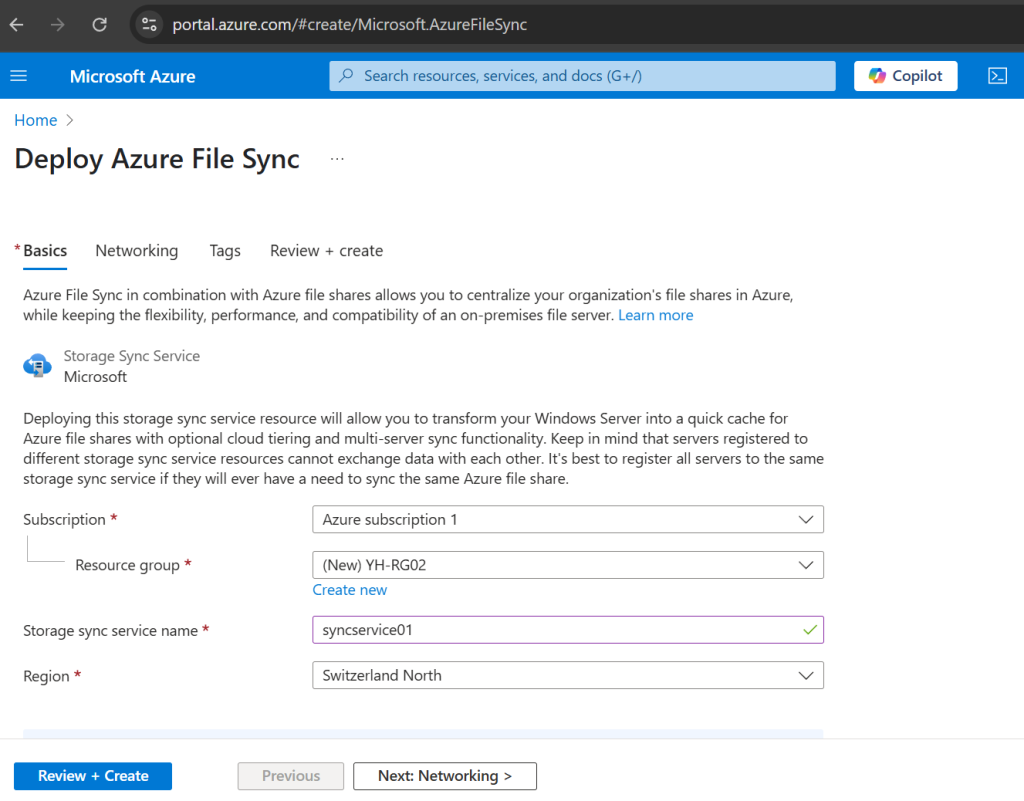
In the Azure portal, begin deploying Azure File Sync by selecting your subscription, resource group, storage sync service name, and region, then click “Review + Create.“
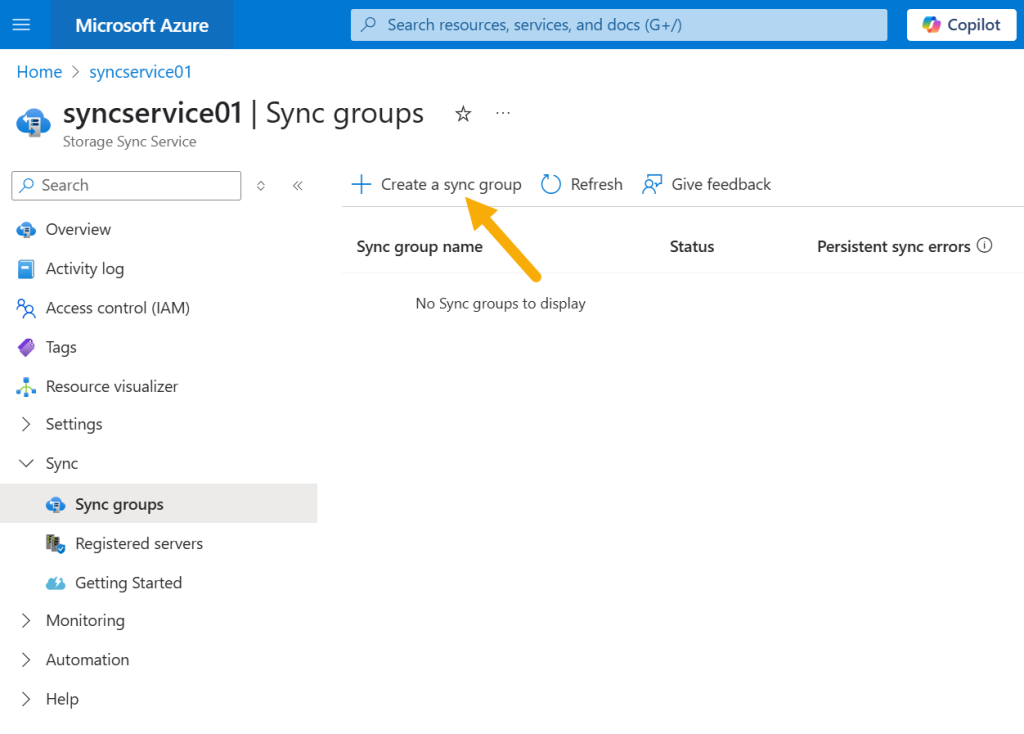
Next, navigate to the “Sync groups” section in your Storage Sync Service and click “Create a sync group” to set up a new sync group for Azure File Sync.
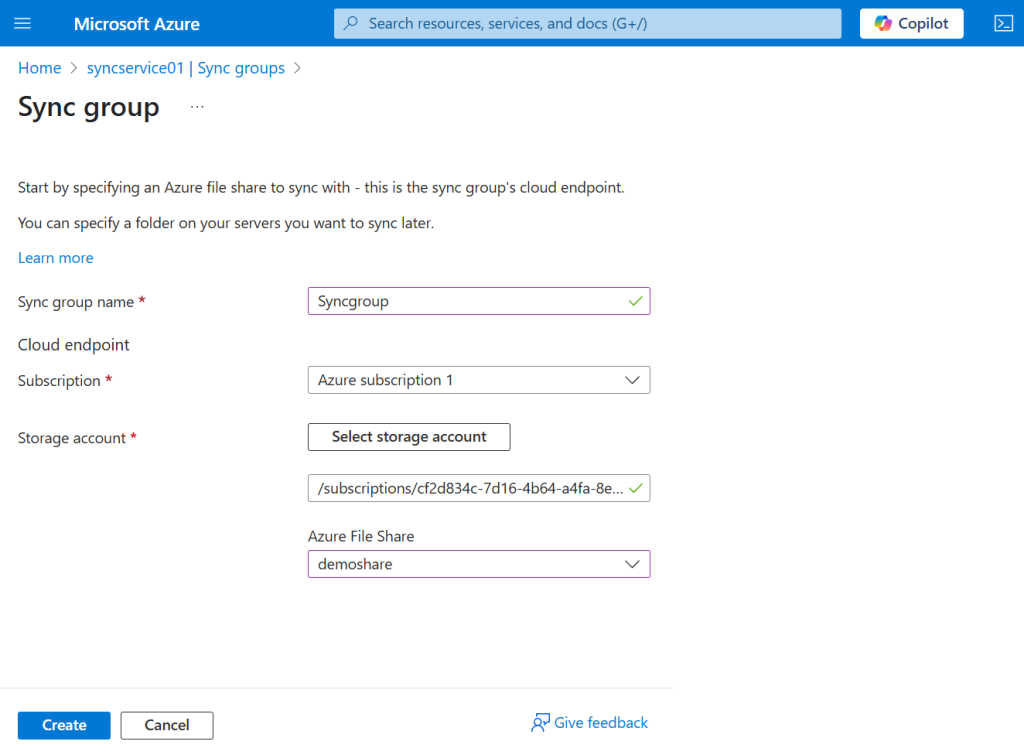
Configure the sync group by entering a name, selecting your subscription and storage account, choose an Azure File Share as the cloud endpoint, then click “Create.“
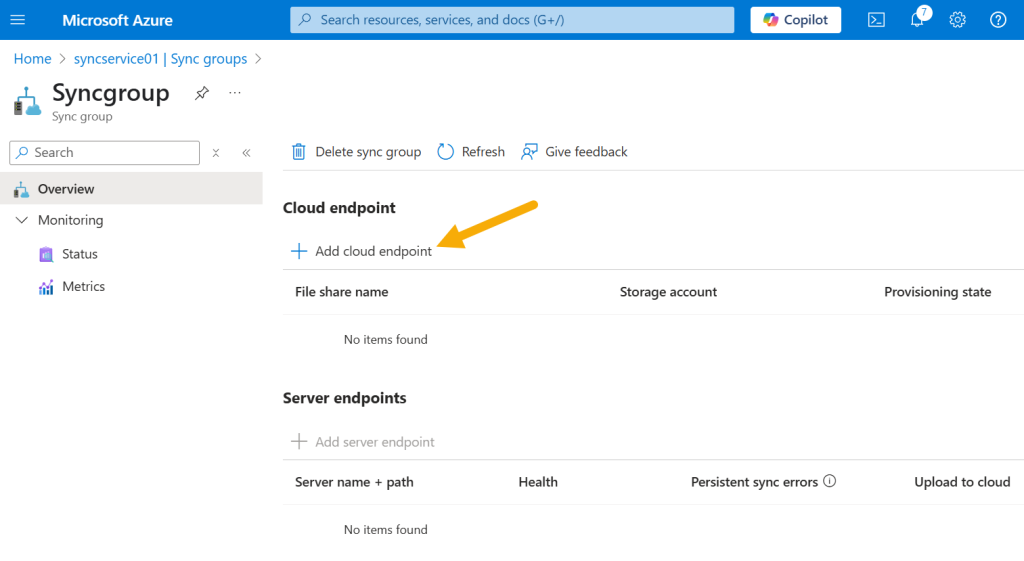
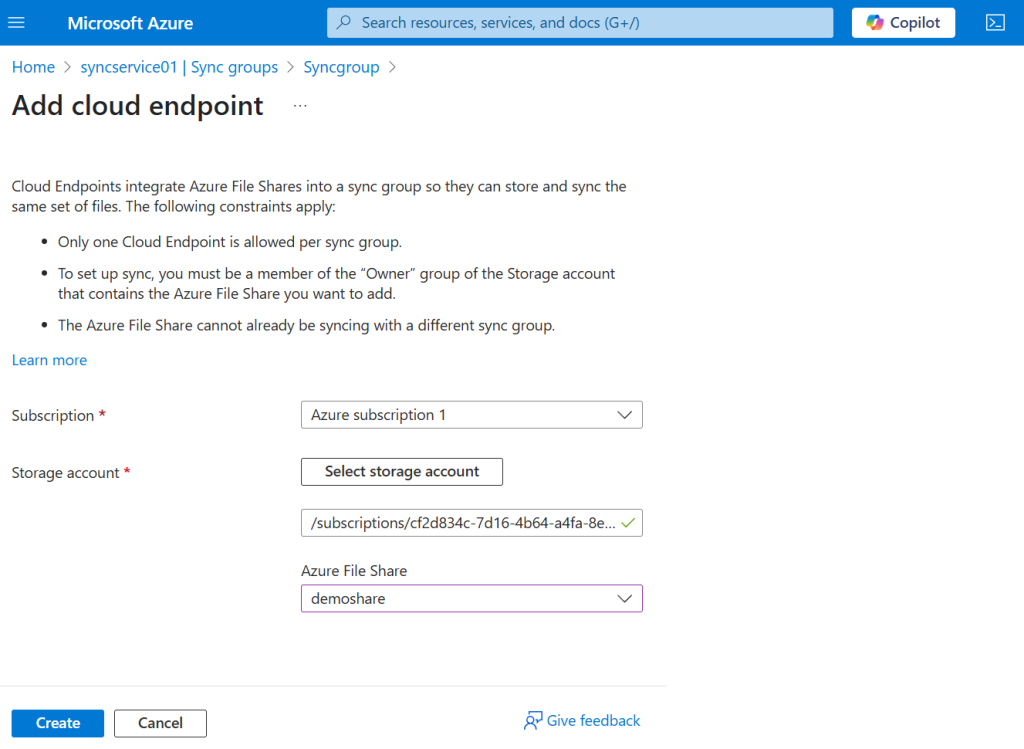
In the “Sync group” settings, click “Add cloud endpoint” to configure a file share for synchronization with your Azure File Sync setup.
A cloud endpoint in Azure File Sync is the Azure File Share that acts as the central hub for your sync group, storing and syncing files across all connected servers.
To add a cloud endpoint, select your subscription and storage account, choose the Azure File Share (e.g., demoshare) that will serve as the sync group’s central hub, then click “Create.“
From Microsoft Download Center, download the Storage Sync Agent
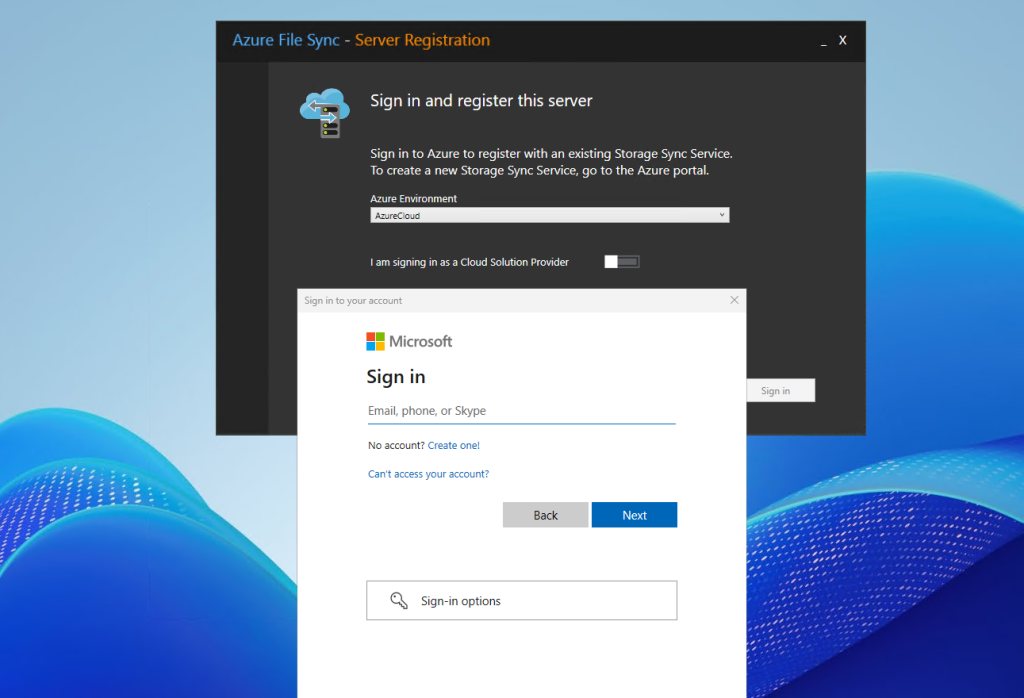
After installation, launch the Azure File Sync – Server Registration tool and sign in with your Microsoft account to register the server with your Storage Sync Service in the Azure portal.
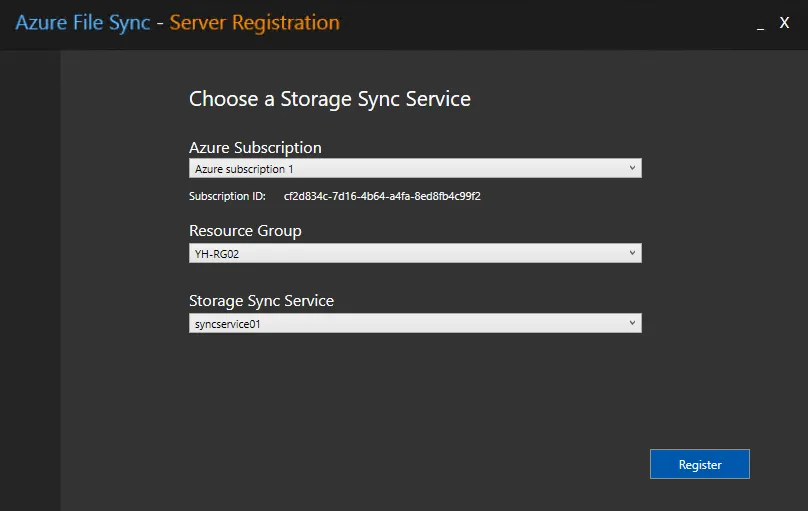
In the Azure File Sync – Server Registration tool, select your Azure subscription, resource group, and Storage Sync Service (e.g., syncservice01), then click “Register” to connect your server.
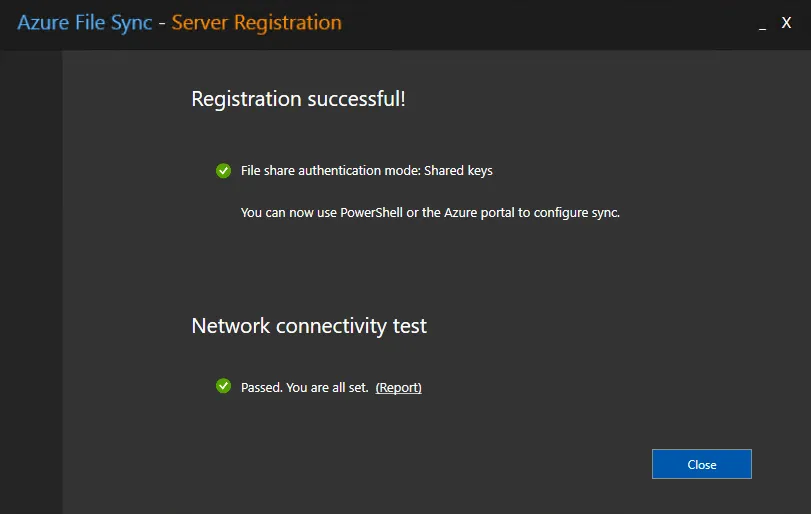
Once registered, confirm the successful registration and network connectivity test, then you can proceed with configuring sync in Azure portal.
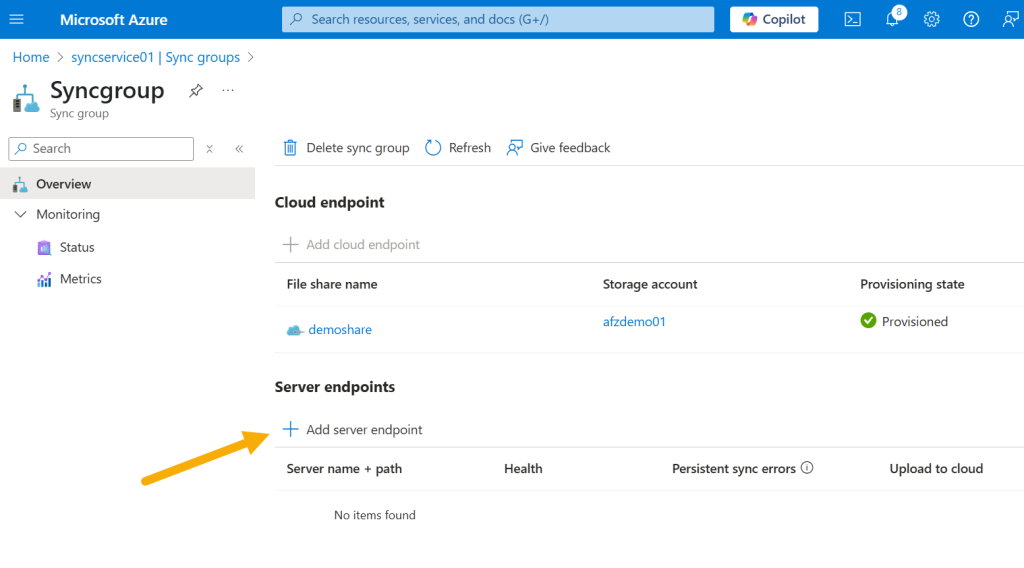
With the cloud endpoint provisioned, click “Add server endpoint” under “Server endpoints” to connect your on-premises server to the sync group in Azure File Sync.
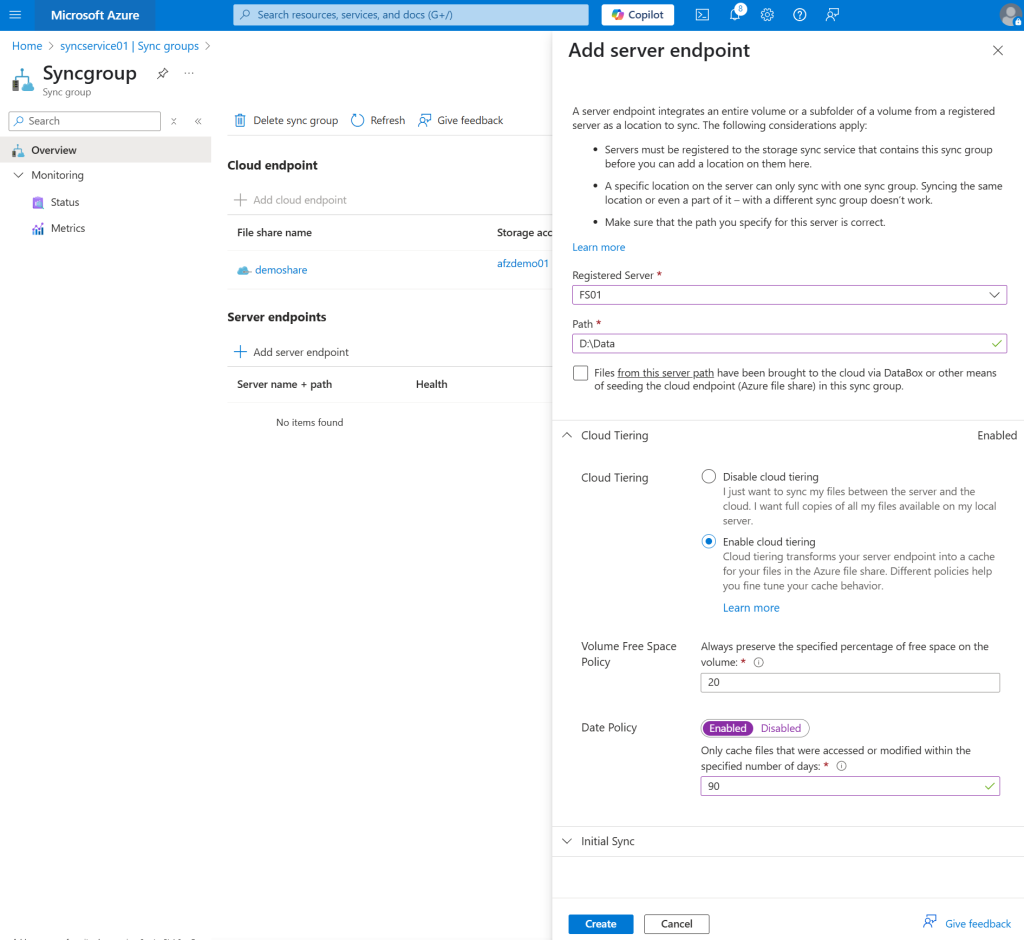
In the “Add server endpoint” section, select your registered server (e.g., FS01), specify the path (e.g., D:\Data)
If you have limited local storage and want to leverage the cloud for less frequently accessed files, then you can enable cloud tiering with desired policies for volume free space and date.
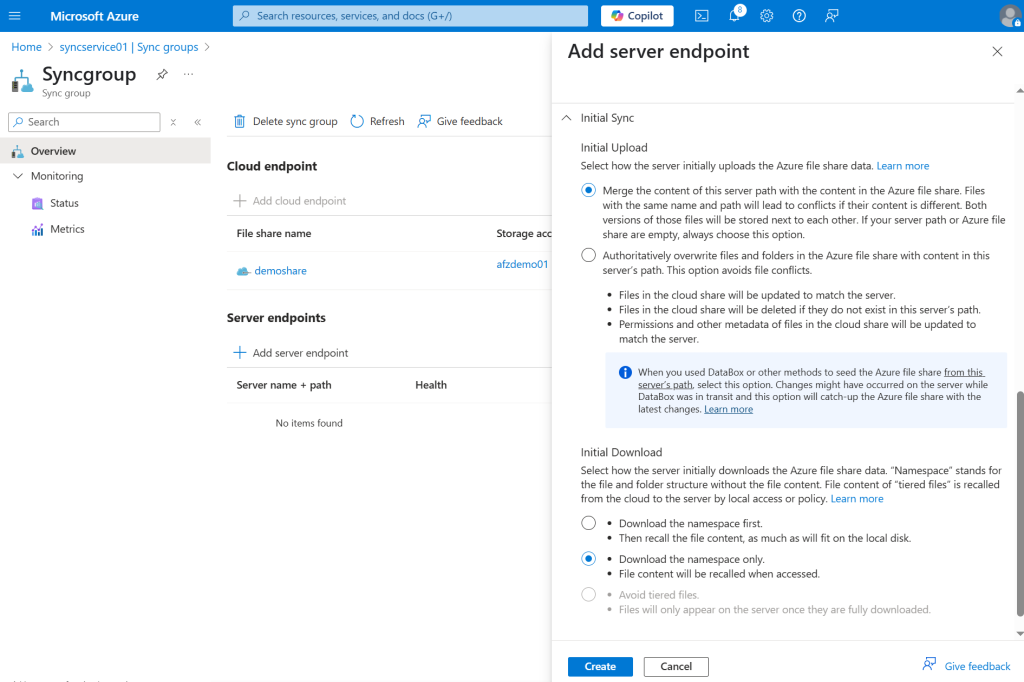
The “Initial Sync” settings for a server endpoint in Azure File Sync will determine how the server initially syncs with the Azure file share.
Initial Upload
- Merge: This feature combines the content from the server path with the Azure file share. If there are any conflicts, such as different file versions, the latest one will be kept, and both the server and Azure share will be updated.
- Authoritatively Overwrite: This option will overwrite the Azure file share with the content from the server. The cloud will then align with the server’s files, permissions, and metadata.
Initial Download
- Download the namespace first, then recall file content: Downloads the folder structure first, then pre-downloads file content as space allows. Remaining content is recalled on access. Suitable for faster access but uses more initial bandwidth and disk space.
- Download the namespace only: Downloads only the file and folder structure. File content is recalled only when accessed. This is the most bandwidth-efficient option initially.
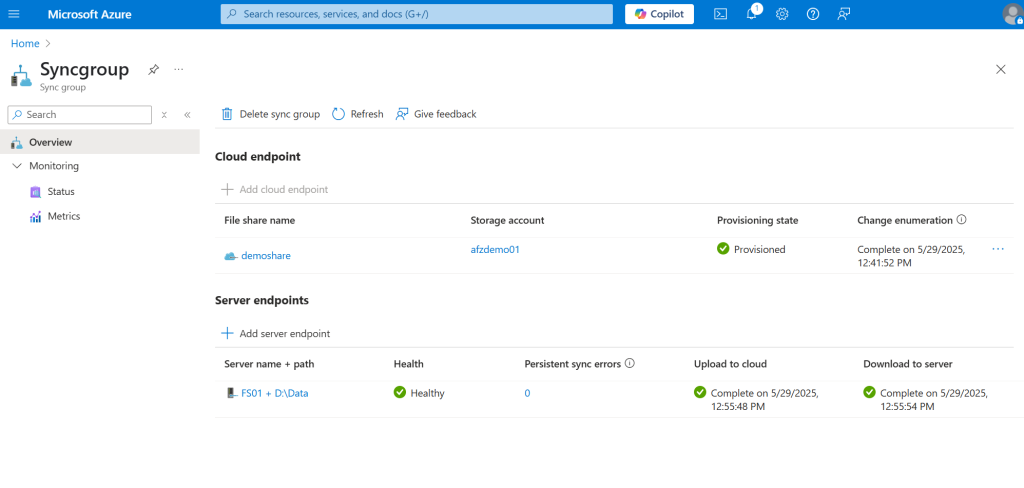
Now we have the sync group “Syncgroup” is fully configured with a provisioned cloud endpoint (demoshare) and a healthy server endpoint (FS01 + D:\Data), with sync activities completed
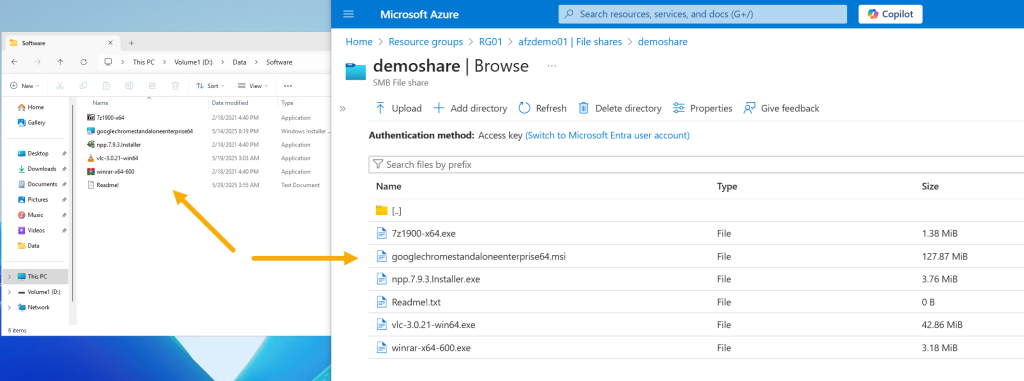
If you now go back to FS01 where we installed the sync agent and open the D: drive, you will see that there is a folder added called Data. You can copy files to it.
If you also open the file share (demoshare) in Azure, you will see that all the files are synced to the storage account in Azure.
Conclusion:
Whether you’re looking to simplify storage management or leverage cloud-based file services without abandoning existing infrastructure, Azure File Sync offers a powerful way to modernize your file storage strategy.