Many companies are now adopting a mix of on-premises infrastructure and cloud services to improve their productivity and flexibility. But how can you securely connect your on-premises network to the cloud? Well, Azure VPN gateway is a powerful solution that we can use to create a secure, encrypted tunnel between your on-premises data center and Azure’s cloud environment.
In this article, we’ll explore why hybrid connectivity matters and walk through a real-world scenario to provide step-by-step guidance on how to set it up.
Why hybrid connectivity?
Scenario
Your organization has an on-premises data-center with critical applications and database servers. You want to shift some workloads to the cloud to enhance the scalability and take advantage of Azure advanced services. To ensure a better, secure, and reliable connection between Azure and on-premise, you can use a hybrid connection via Azure VPN gateway.
Setting Up Hybrid Connectivity
To establish a secure connection between your on-premises network and Azure using a VPN gateway you will need to do the following:
Create a virtual network
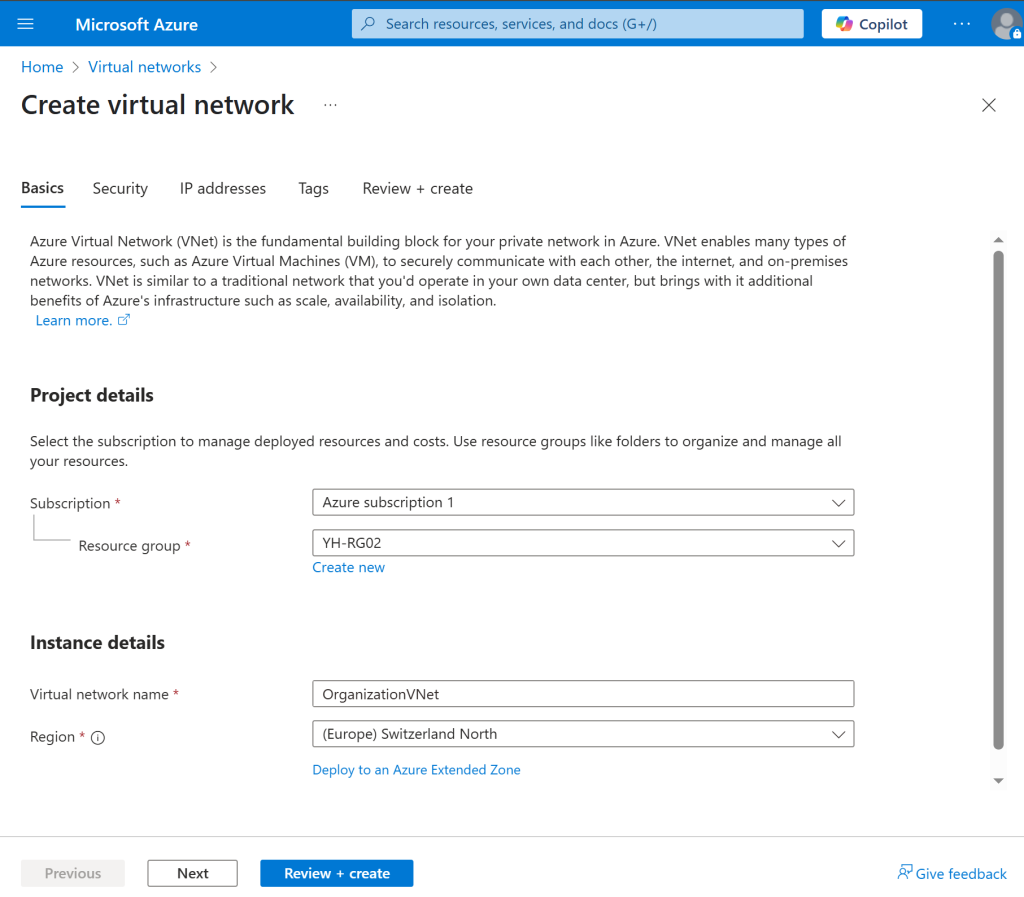
Select your Azure subscription and resource group.
Name your VNet and choose the region for deployment.
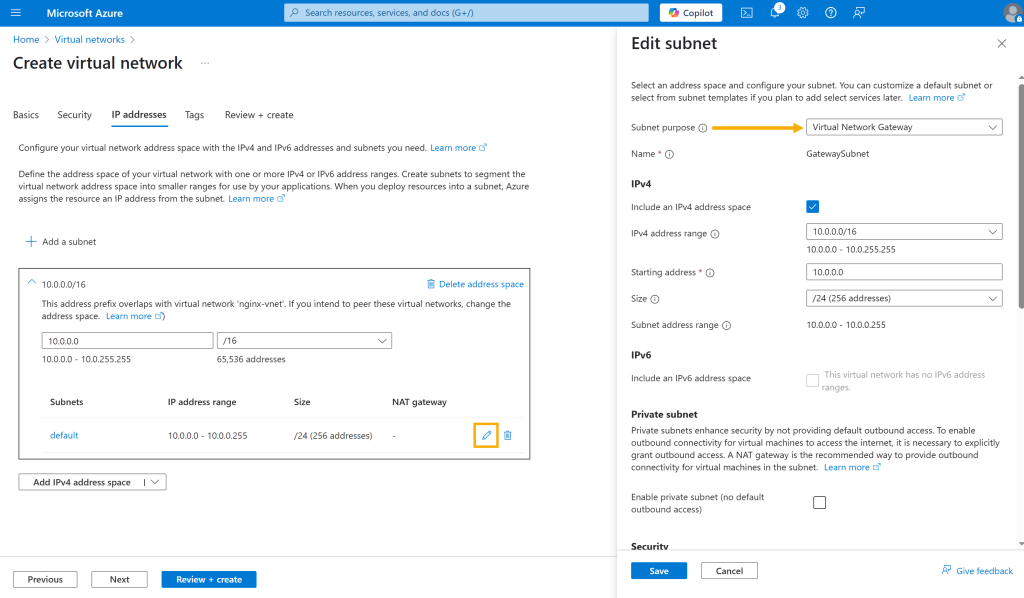
- Define the IP address space (e.g., 10.0.0.0/16), then create a GatewaySubnet (e.g., 10.0.0.0/24) with the purpose set to Virtual Network Gateway.
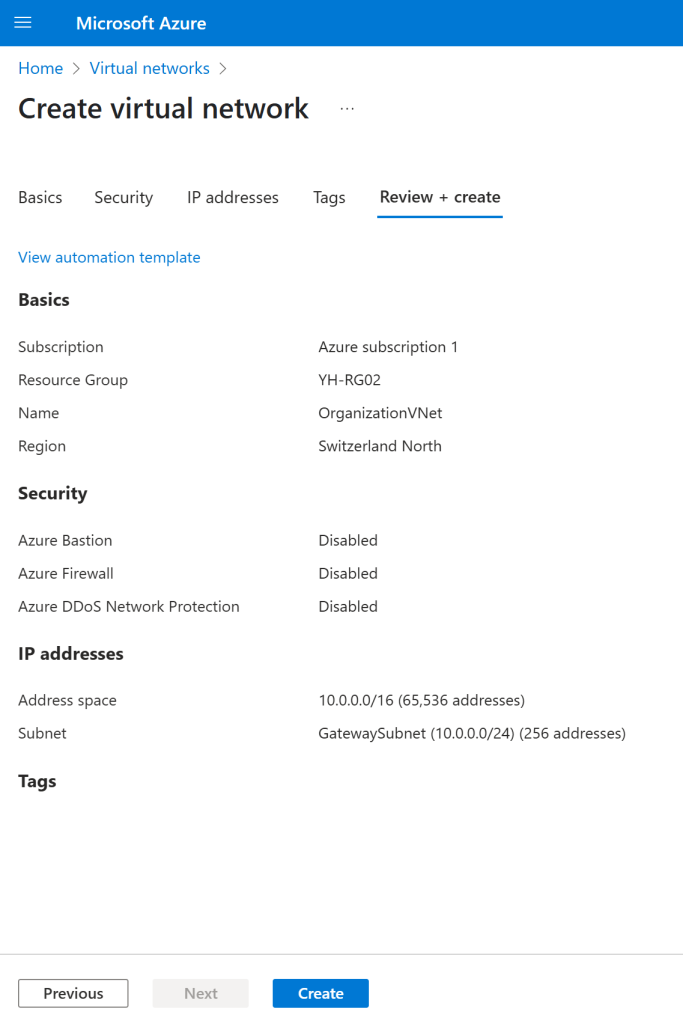
- Review your configuration details, ensuring the subscription, resource group, VNet name, region, and IP settings are correct. Click “Create” to finalize the virtual network setup.
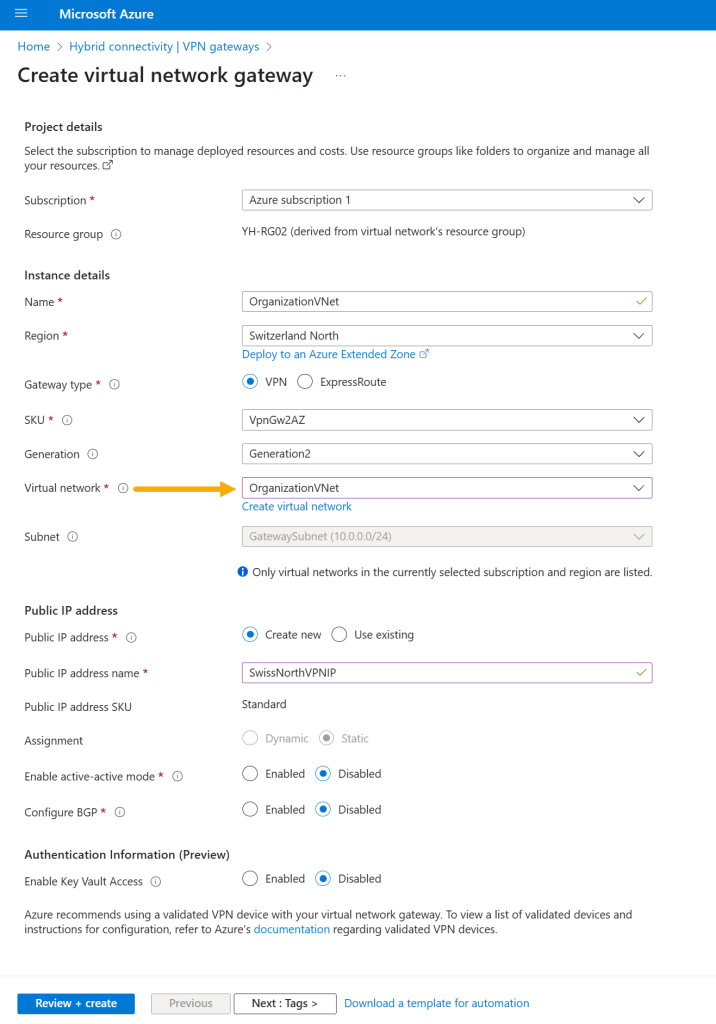
- From Hybrid connectivity, create a new VPN gateway by selecting your subscription and resource group.
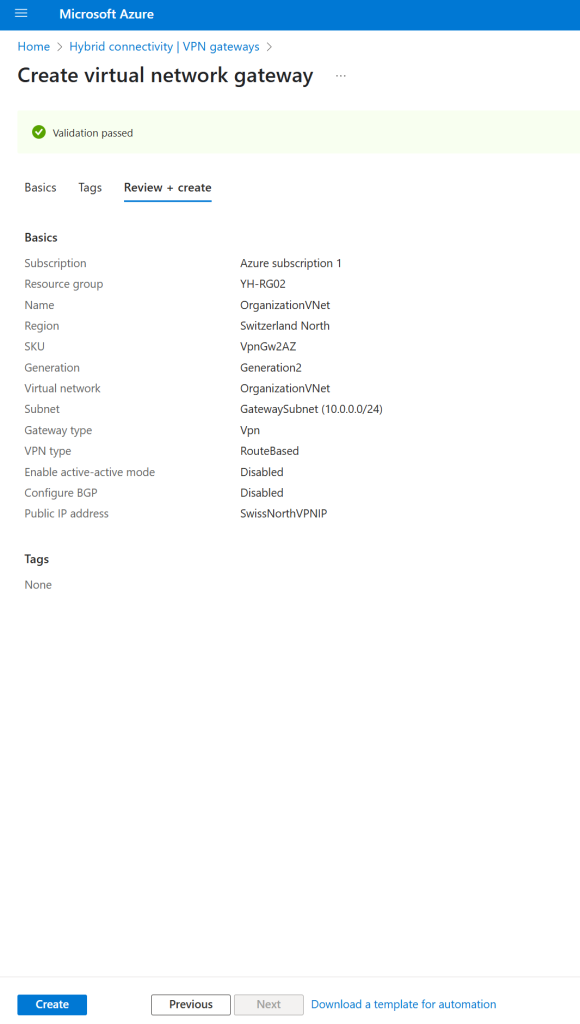
- Enter instance details, set the gateway type to VPN, choose the region and SKU, and connect to your VNet. Create a new public IP address.
- Review all configuration details, ensuring the subscription, resource group, VNet name, region, and gateway settings are correct. Click “Create” to deploy the virtual network gateway.
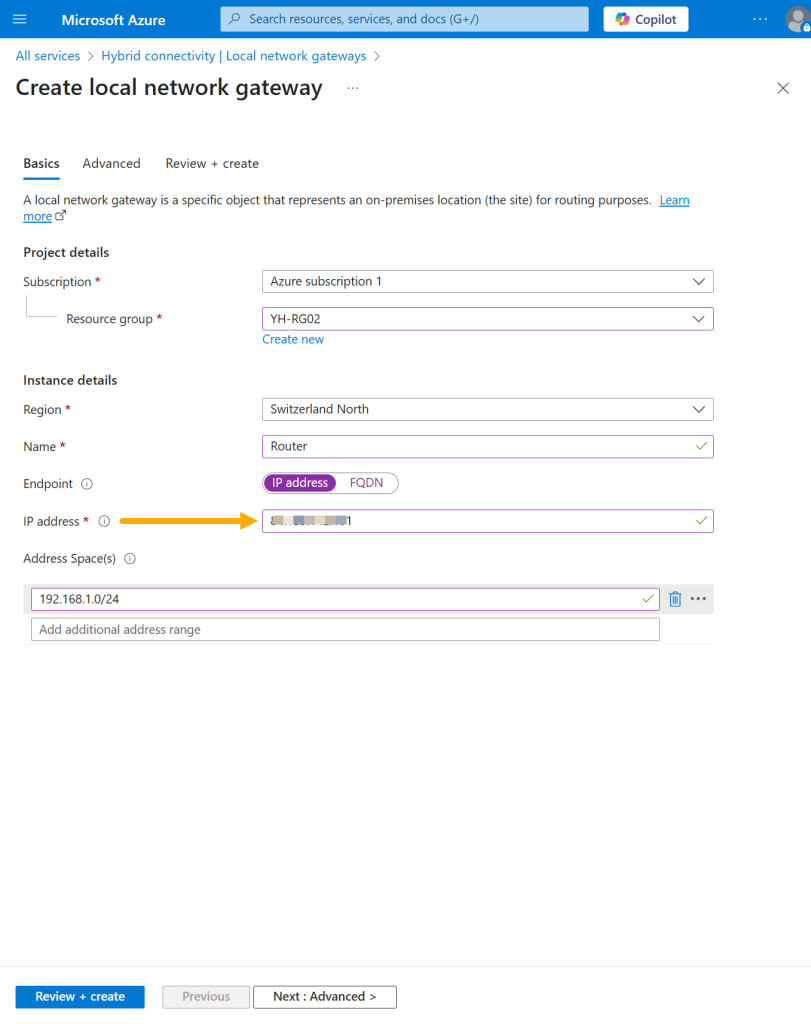
- Now you can create a local network gateway. Select your subscription and resource group, set the region, and enter the name. Specify the endpoint IP address or FQDN and define the address space of your on-premises network.
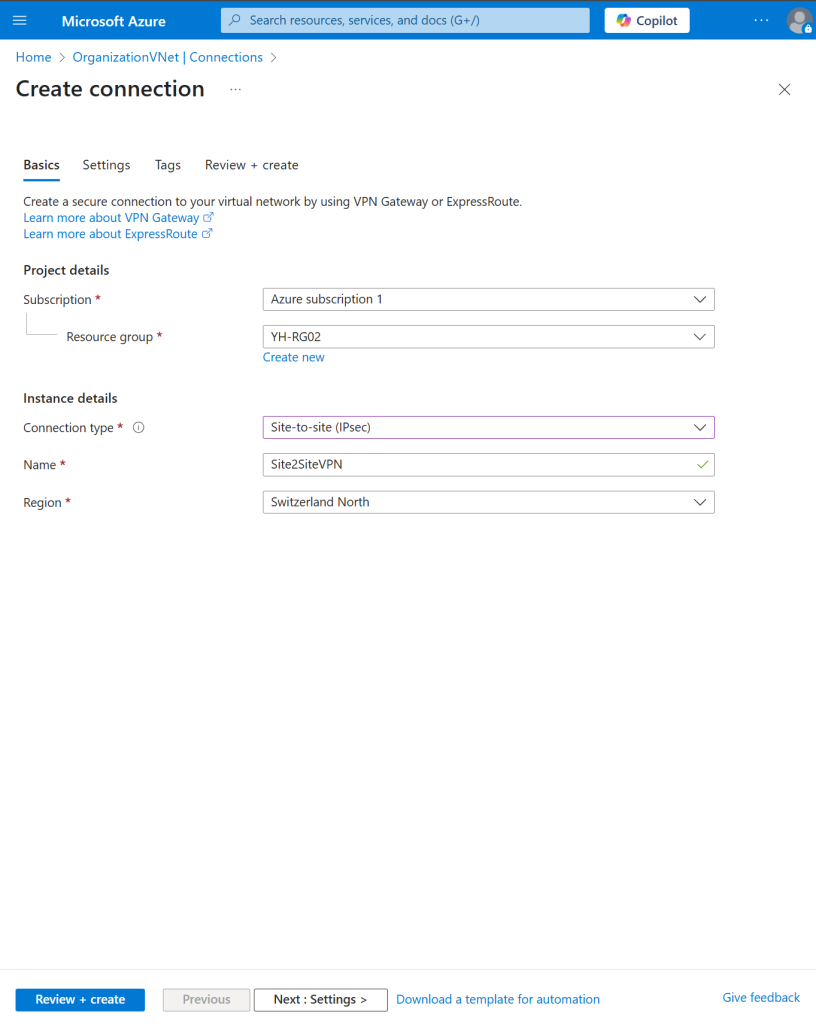
- In your Virtual Network Gateway, create a new connection by selecting your subscription and resource group. Choose “Site-to-site (IPsec)” for connection type, and give it a name.
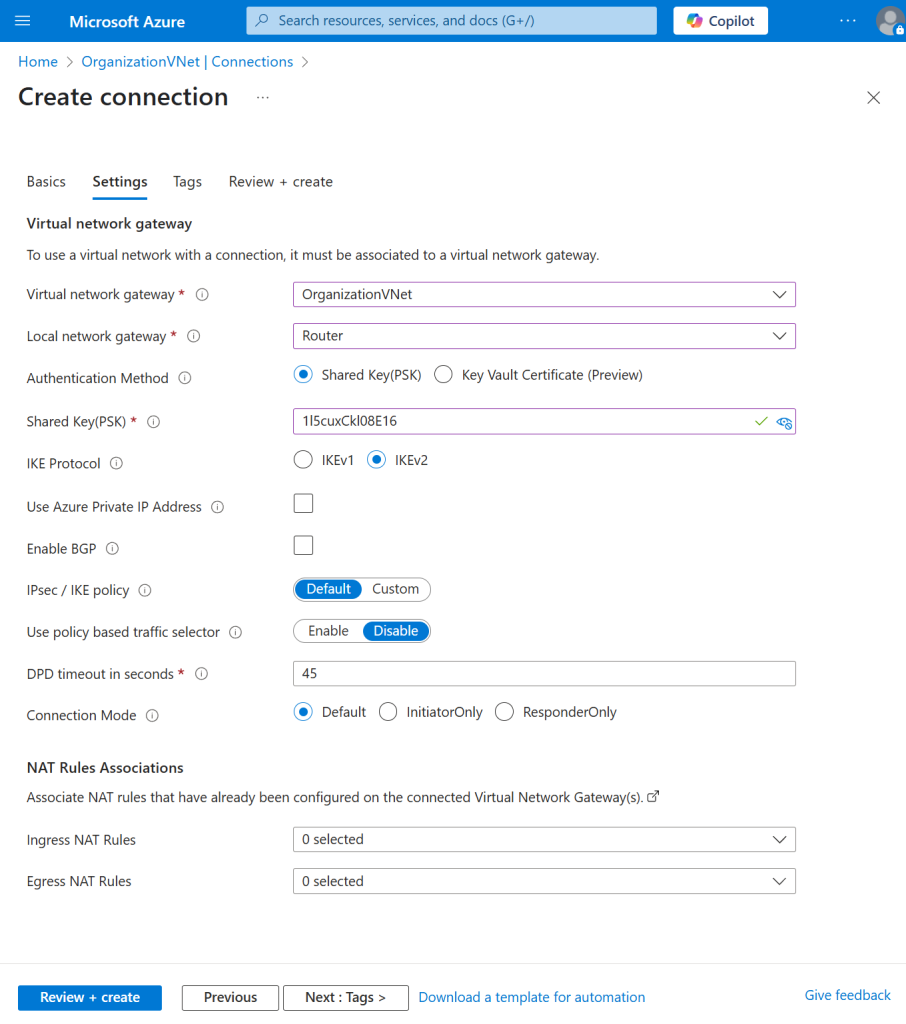
- Under settings, select the virtual network gateway and local network gateway.
- Choose your authentication method with a shared key, pick the IKE protocol, configure other settings as needed, and click “Review + create.”
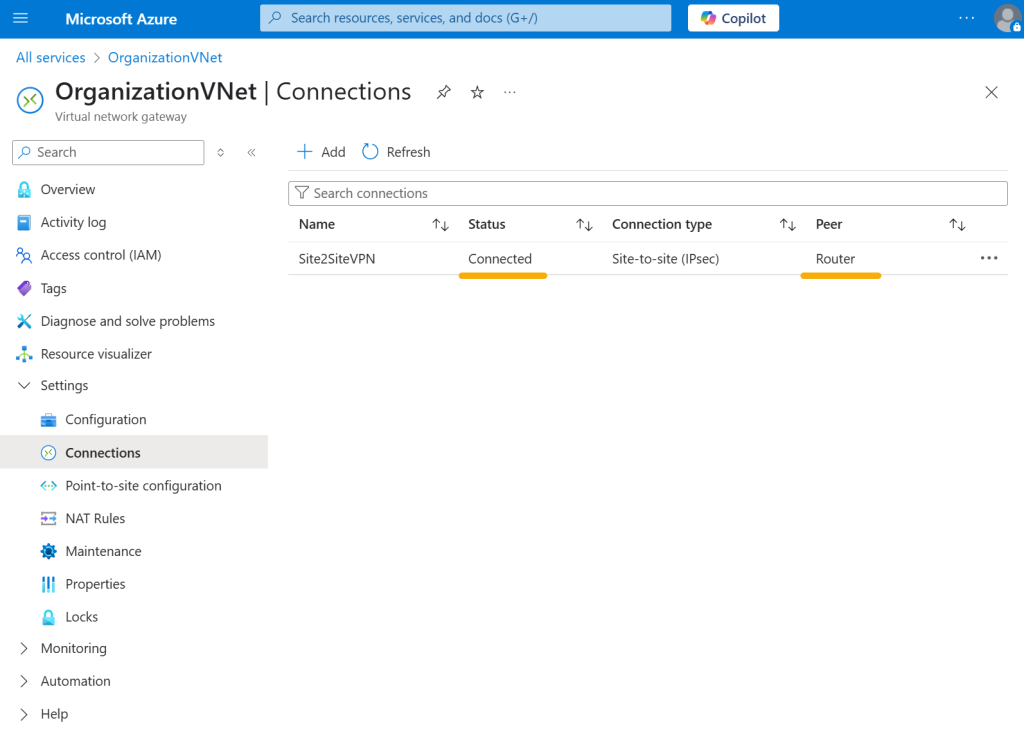
- Now you need to set up the IPsec connection on your local gateway device (e.g., Sophos, Kerio Control, Cisco). Once configured, check the connection status in Azure to ensure it’s connected successfully.
After performing all connections and configurations, your Azure VPN gateway is now operational. Please check the connection periodically for stability and performance.