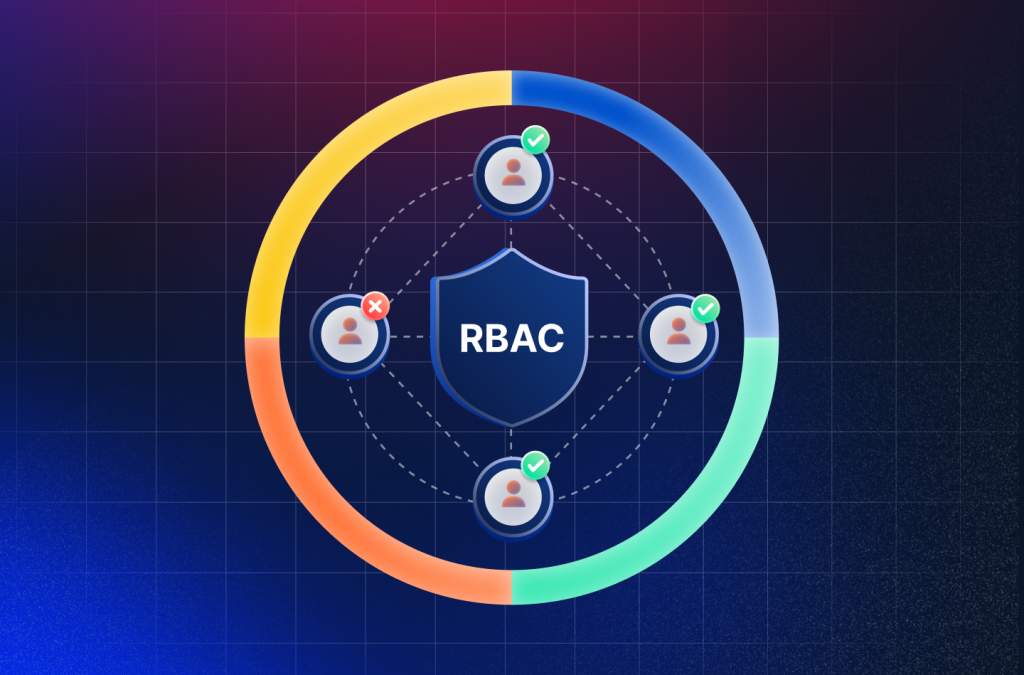
With Azure Role-Based Access Control (RBAC), it is possible to set and manage access at a specific level for each resource. Doing so through custom roles allows one to enable or restrict certain tasks to fulfill specific requirements.
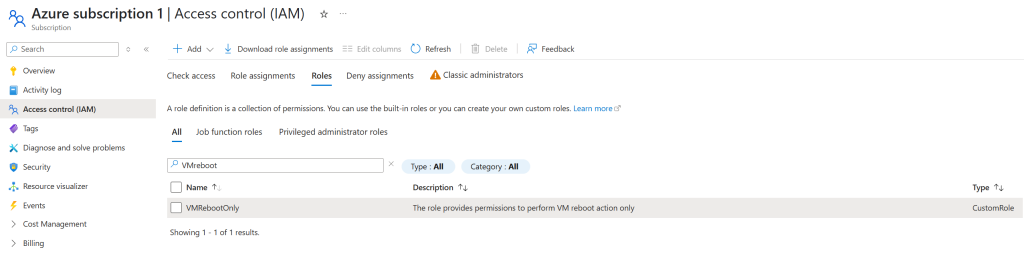
In this guide, we will create such a custom role. We will name it VMRebootOnly and it will allow users to reboot virtual machines (VMs) but not start or power VMs. This role will be implemented through the Azure CLI and will be based on an actual scenario.
Prerequisites
Before you begin, ensure you have:
- An Azure account with access to the target subscription and permissions to manage RBAC roles (e.g., Owner or User Access Administrator).
- The Azure CLI installed or access to Azure Cloud Shell.
- The JSON role definition saved as vm-reboot-only.json
The VMRebootOnly role is designed to grant permissions to:
- Read VM properties.
- Restart VMs.
It explicitly denies permissions to start or power off VMs, ensuring tight control over VM management. Here’s the JSON definition for the role:
{
"Name": "VMRebootOnly",
"Description": "The role provides permissions to perform VM reboot action only",
"AssignableScopes": [
"/subscriptions/cf2d834c-7d16-4b64-a4fa-8ed8fb4c99f2"
],
"Actions": [
"Microsoft.Compute/virtualMachines/read",
"Microsoft.Compute/virtualMachines/restart/action"
],
"NotActions": [
"Microsoft.Compute/virtualMachines/start/action",
"Microsoft.Compute/virtualMachines/powerOff/action"
],
"DataActions": [],
"NotDataActions": []
}
This role is scoped to a specific subscription (/subscriptions/cf2d834c-7d16-4b64-a4fa-8ed8fb4c99f2) and can be assigned to users, groups, or service principals.
To create and assign a custom RBAC role using the Azure CLI
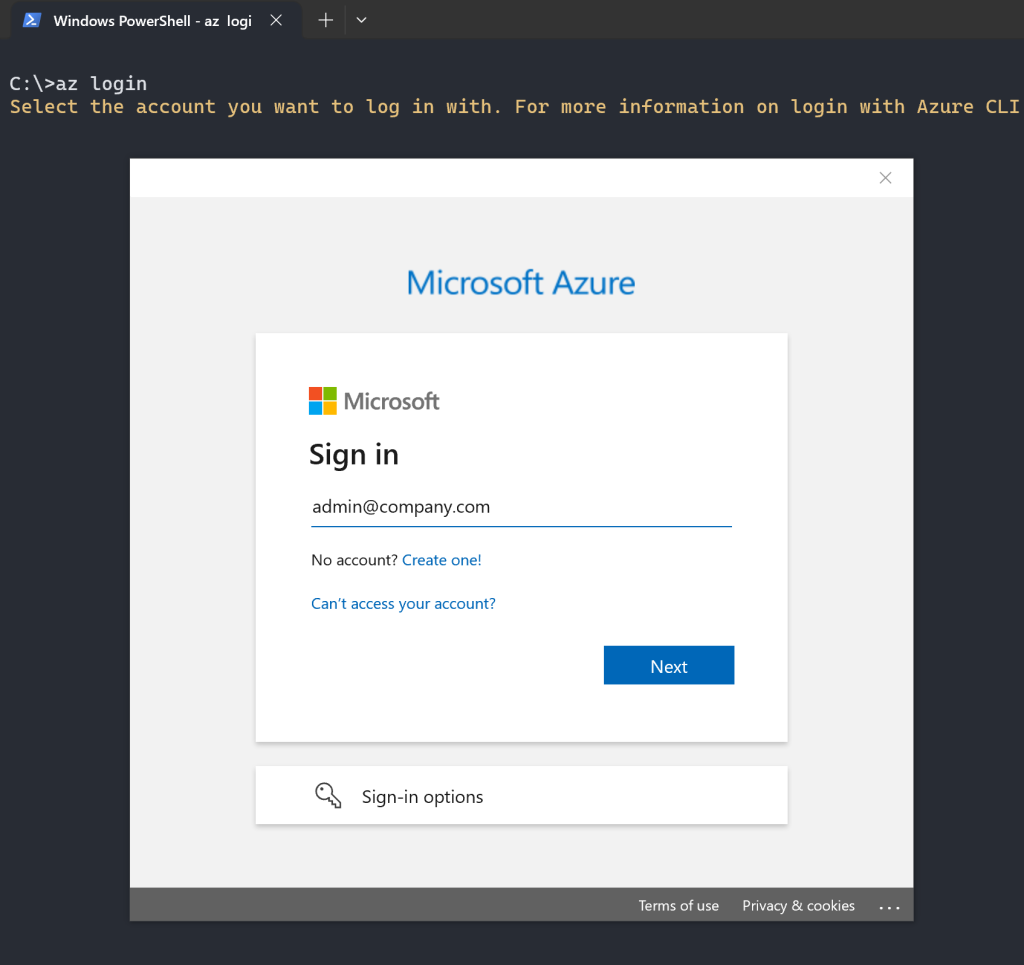
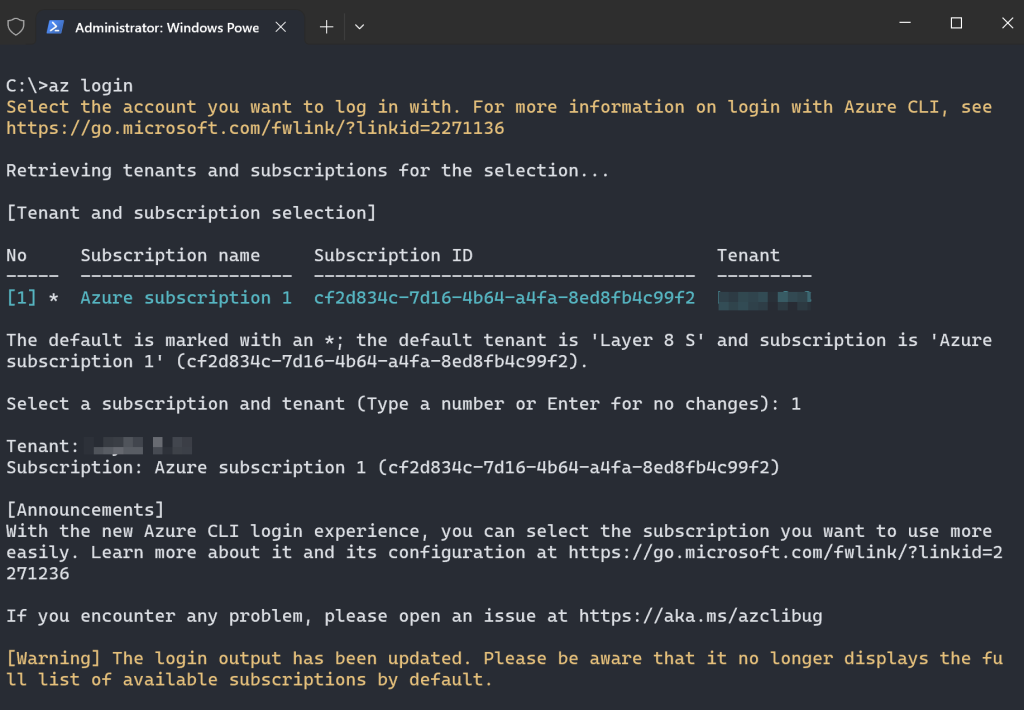
Log in to Azure:
- Open a terminal or Azure Cloud Shell and authenticate:
az login
Set the target subscription
- Ensure you’re working in the correct subscription:
az account set --subscription cf2d834c-7d16-4b64-a4fa-8ed8fb4c99f2
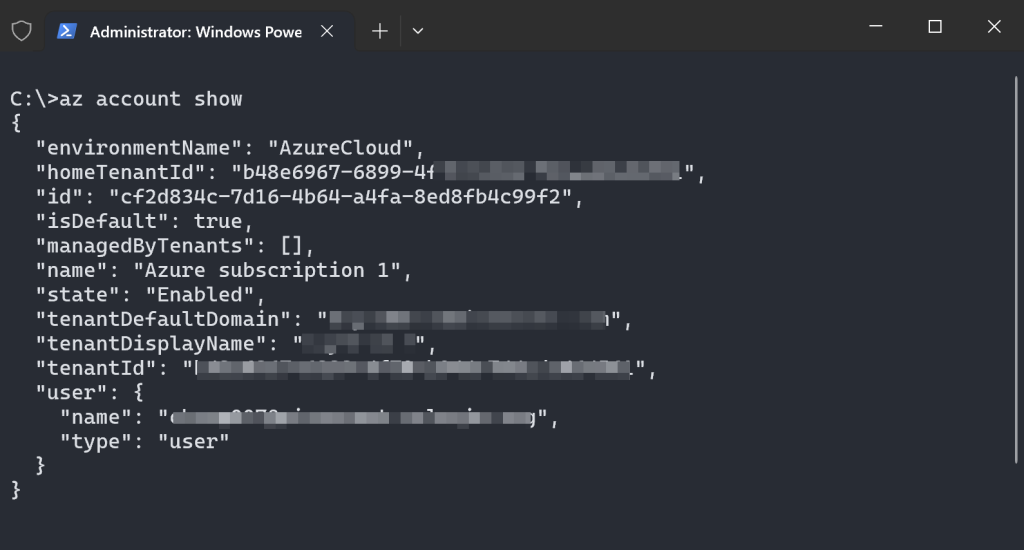
You can verify the active subscription:
az account show
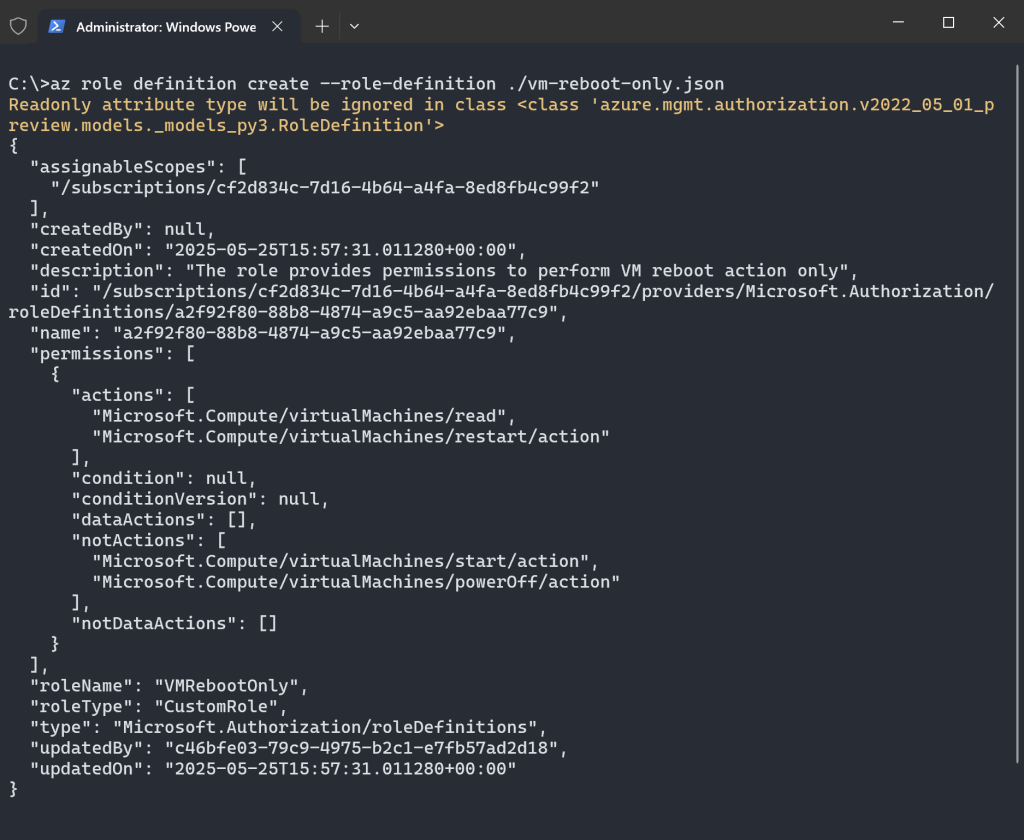
- Create the role in Azure using the az role definition create command:
az role definition create --role-definition ./vm-reboot-only.json
This will registers the VMRebootOnly role in your subscription. (Make sure you have the JSON file in your working directory). You can confirm the role was created using:
az role definition list --name VMRebootOnly --output table
Assign the Role
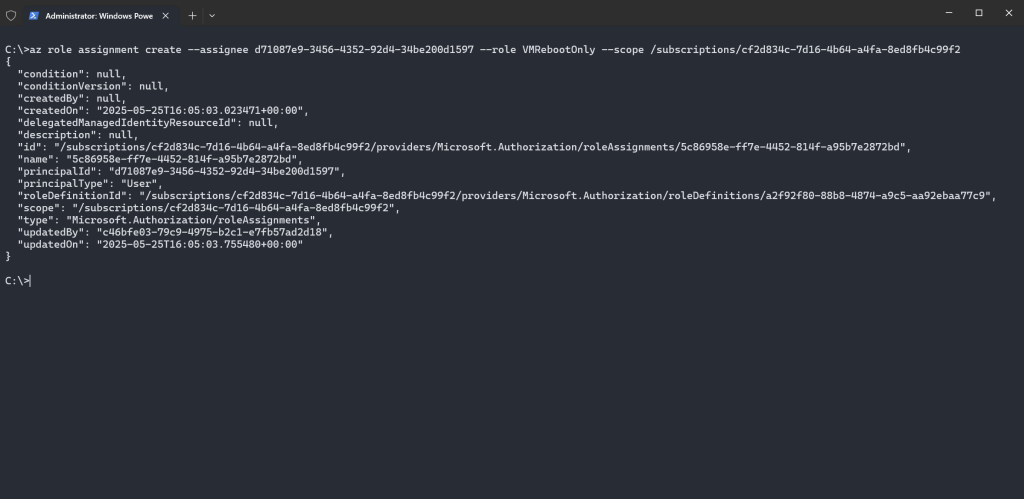
- Assign the role to a user, group, or service principal. For example, to assign it to a user at the subscription level:
az role assignment create --assignee <user-email-or-object-id> --role VMRebootOnly --scope /subscriptions/cf2d834c-7d16-4b64-a4fa-8ed8fb4c99f2
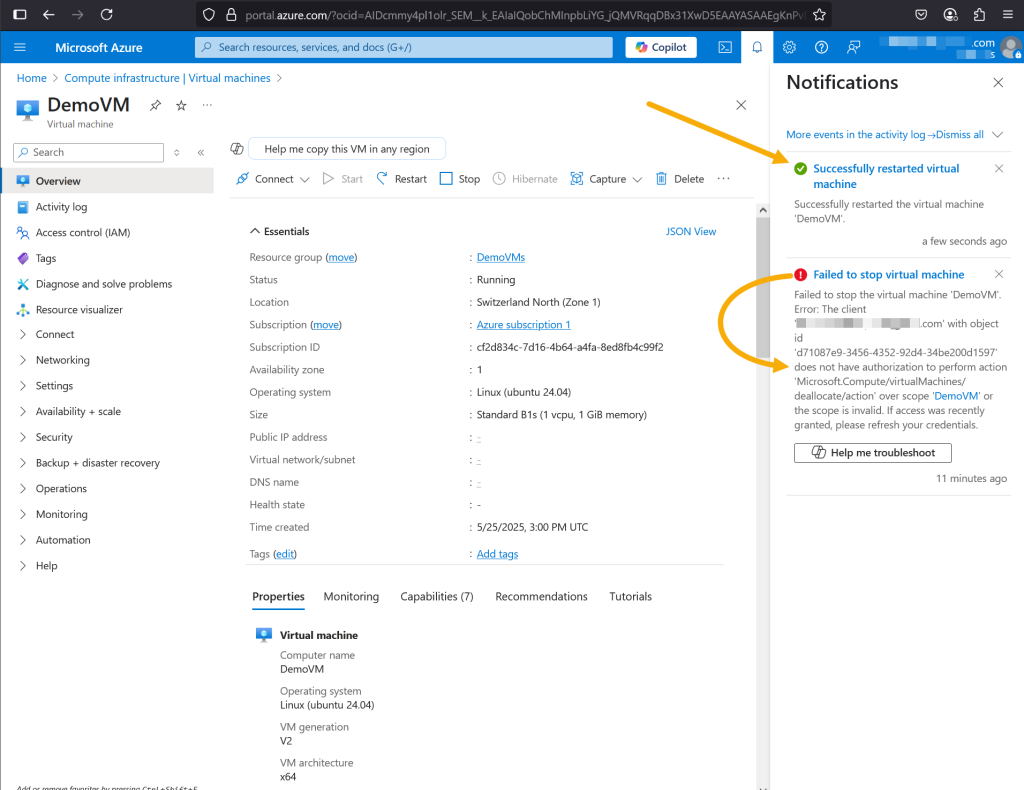
Now, when the user tries to start or stop the VM. These should fail due to the notActions restrictions, while attempting to restart a VM should be working without any issues.
The VMRebootOnly role is just one example. You can create custom RBAC roles for other Azure resources (e.g., storage accounts, databases, or networks):
- Update actions and notActions with the relevant permissions (e.g., Microsoft.Storage/storageAccounts/read for storage accounts).
- Adjust assignableScopes to target specific subscriptions, resource groups, or resources.
- Use the Azure permissions reference to identify applicable actions.
Best Practices
- Limit Scope: Set assignableScopes to the smallest scope necessary (e.g., a resource group instead of a subscription) to follow the principle of least privilege.
- Leverage Managed Identities: For automated processes, assign roles to Azure Managed Identities for enhanced security.